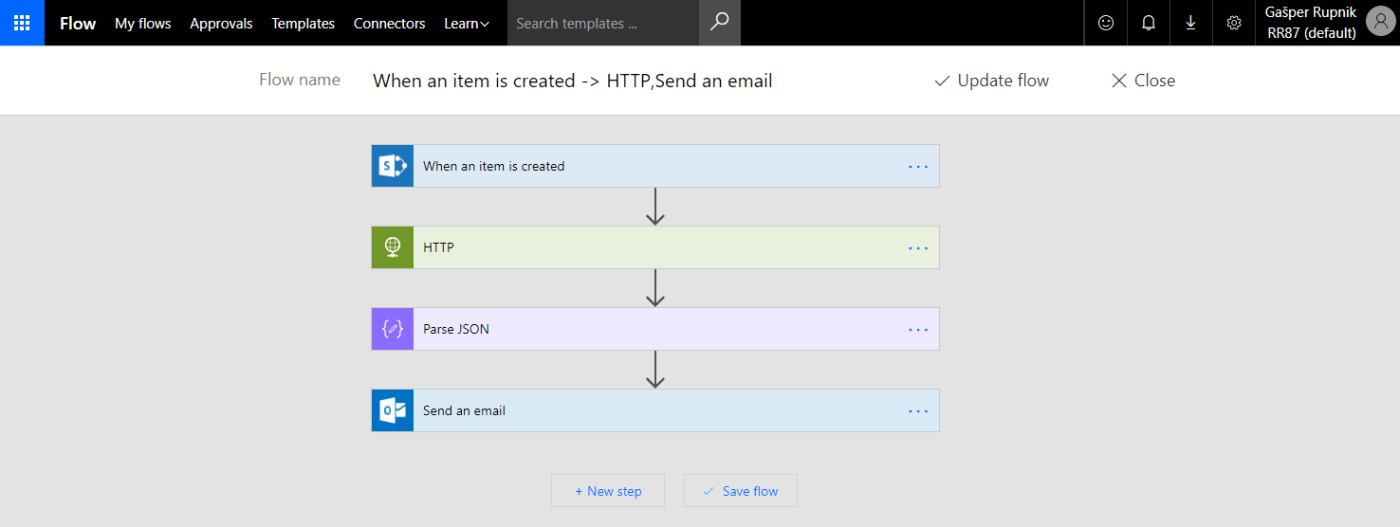
Let’s start today with new way of building workflows from Microsoft – Microsoft Flow.
Because many of companies use SharePoint as first and best choice for internal portal platform I want to connect Microsoft Flow with it.
Microsoft Flow is like a wizard and you can create a lot of standard business flows with just few clicks and settings. But because we are developers, we want to create something more – we want to add to our flow some custom action, created by Azure Functions.
Microsoft Flow is located on this URL: https://flow.microsoft.com
It can be connected to many types of platforms like this in image below.
We have a lot of different flow templates predefined and we can simply use it.

Go to My flows and create new one from blank. Choose trigger When an item is created.

Connect it to SharePoint Online site, where you have some test list named Task (Task List Template).

Add new action step and search for HTTP type of action.

Now you have to go to Azure portal: https://portal.azure.com
Firstly create new SQL database named SharePointTaskFlow in which you will have one table with mail templates.
Create table with this script:
CREATE TABLE [dbo].MailTemplates
(
    [Id] INT NOT NULL PRIMARY KEY IDENTITY,
    [Type] NCHAR(6) NOT NULL,
    [Subject] NVARCHAR(100) NOT NULL,
    [Body] NVARCHAR(MAX) NOT NULL
)
Fill table with two mail templates:
- Type: CREATE
Subject: New Task – {Title}
Body:Hello {Author}!You have successfully created a task named {Title}.Best regards,
RaspeR87 - Type: UPDATE
Subject: Updated Task – {Title}
Body:Hello {Author}!You have successfully updated a task named {Title}.Best regards,
RaspeR87
Then copy connection string which you will use it in your Azure Function.

Create new Azure Function App named RR87TestFA.
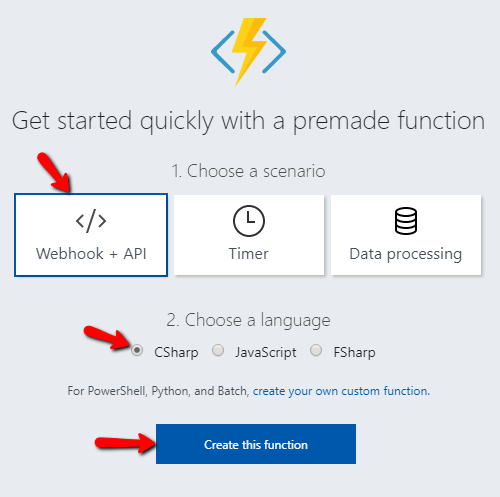
Then create new function like on images below.

Go to Application settings and add connection string copied before.

Copy next part of code to your Azure function (run.csx file):
#r "System.Configuration"
#r "System.Data"

using System.Net;
using System.Configuration;
using System.Data.SqlClient;
using System.Threading.Tasks;

class MailTemplate
{
    public string Subject {get; set;}
    public string Body {get; set;}
}

public static async Task<HttpResponseMessage> Run(HttpRequestMessage req, TraceWriter log)
{
    string type = req.GetQueryNameValuePairs()
        .FirstOrDefault(q => string.Compare(q.Key, "type", true) == 0)
        .Value;
    string title = req.GetQueryNameValuePairs()
        .FirstOrDefault(q => string.Compare(q.Key, "title", true) == 0)
        .Value;
    string author = req.GetQueryNameValuePairs()
        .FirstOrDefault(q => string.Compare(q.Key, "author", true) == 0)
        .Value;

    MailTemplate responseObject = null;

    var str = ConfigurationManager.ConnectionStrings["db"].ConnectionString;
    using (SqlConnection conn = new SqlConnection(str))
    {
        conn.Open();
        using (SqlCommand cmd = new SqlCommand("SELECT Subject,Body FROM MailTemplates WHERE Type = '" + type + "'", conn))
        {
            using (SqlDataReader reader = cmd.ExecuteReader())
            {
                while (reader.Read())
                {
                    responseObject = new MailTemplate
                    {
                        Subject = reader.GetString(0).Replace("{Title}", title),
                        Body = reader.GetString(1).Replace("{Title}", title).Replace("{Author}", author)
                    };
                }
            }
        }
    }

    return responseObject == null
        ? req.CreateResponse(HttpStatusCode.BadRequest, "Error (QueryString parameters missing or no results in DB")
        : req.CreateResponse(HttpStatusCode.OK, responseObject);
}
This code check for QueryString parameters named:
- type: type of action on SharePoint list item (CREATE, UPDATE, DELETE)
- title: title of task
- author: author of task
Then we establish connection to database and query for CREATE type of mail template. We package subject and body replaced by corrected title and author into object from MailTemplate class and send it as response.
Copy function url because you will need it in next step.

Go back to Microsoft Flow. In previously created HTTP action define method and uri of your HTTP request like that in image below (uri is copied from previous step). Don’t forget to add type, title and author querystring parameters from List Item Fields.

Add new action step to your Microsoft Flow and search for Parse JSON type of action.
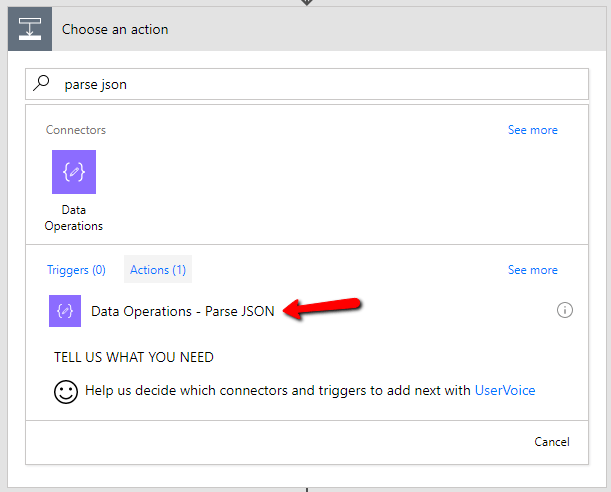
Set content to Body from previous step of your Microsoft Flow and define this kind of Schema:

{
  "type": "object",
  "properties": {
    "Subject": {
      "type": "string"
    },
    "Body": {
      "type": "string"
    }
  }
}
Add last action step to your Microsoft Flow and search for Send an email type of action.

Set it with email from Created By SharePoint List Item Field. Add Subject and Body from parsed JSON in previous step of Microsoft Flow.

Save your flow. Named it as you like.
Test your solution. Add new item to your Task list in SharePoint Online site.

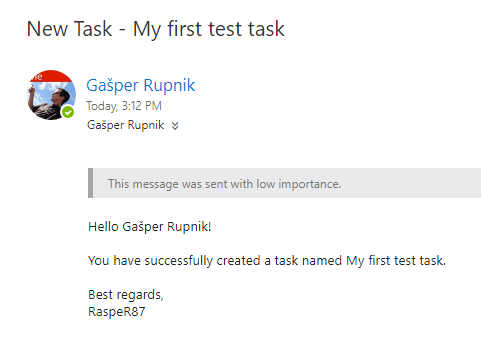
In a few seconds you will receive new mail like that below – generated by your workflow in Microsoft Flow.
Cheers!
Gašper Rupnik
{End.}

 RaspeR87's Blog
Leave a comment