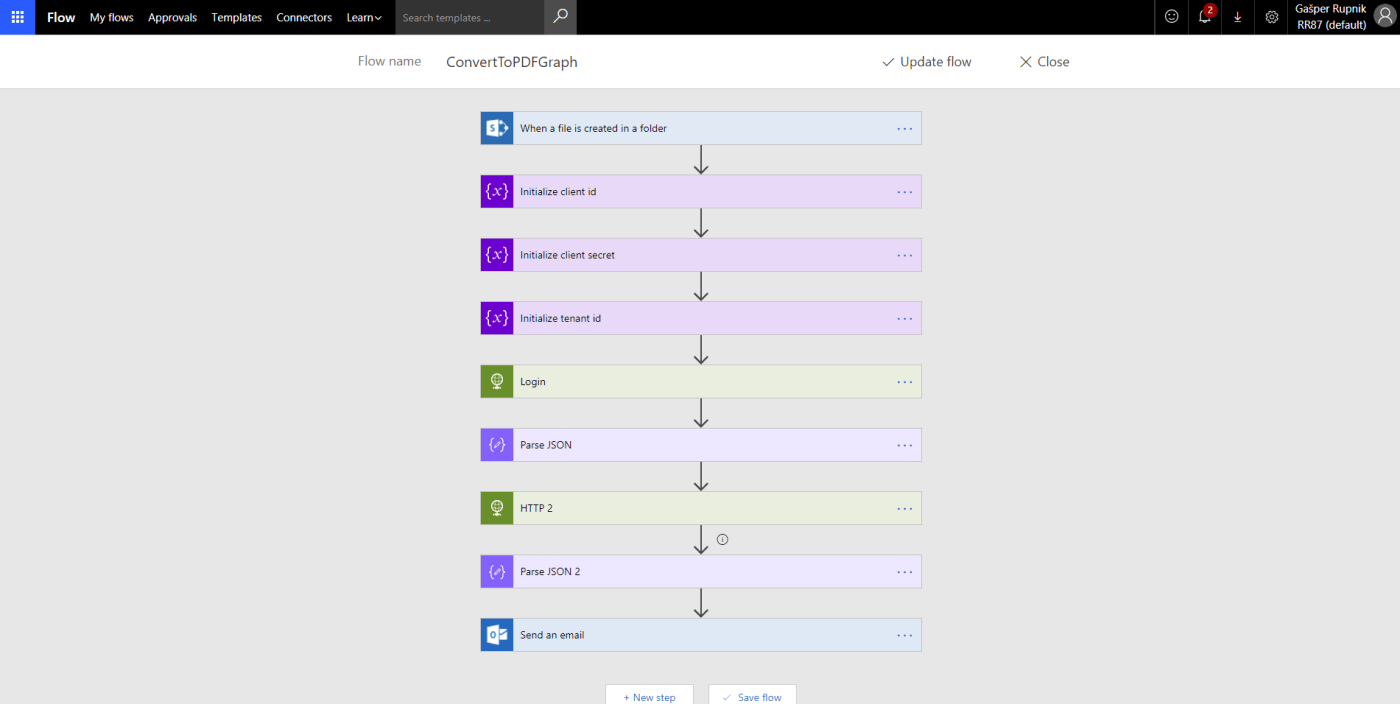
Hi there. You can easly convert DOCX file inside of SharePoint Library to PDF if you use OneDrive functionality.
In Flow you could use Convert file step from OneDrive which is currently still in Preview but no worries.
You have to copied it to OneDrive, convert to PDF and copied back to SharePoint.

Disadvantage of this type of conversion is fact that you need to have OneDrive. And of course, you have to clean up already created files in OneDrive.
Second, better but a lil bit harder solution is via Microsoft Graph where you can call OneDrive API within your SharePoint (Online or 2016).
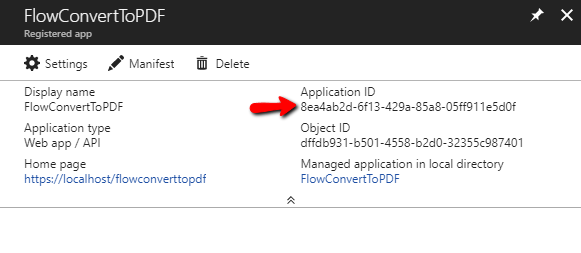
Because we want to use Microsoft Graph we have to register our app into AAD (Azure Active Directory). We can do this @ aad.portal.azure.com. You have to create new App registration with name (for example FlowConvertToPDF), Web app / API application type and some dummy Sign-on URL (for example https://localhost/flowconverttopdf).

Then copy Application ID to Notepad because you will need it later as client id.
Go to Settings / Required permissions of your newly created Azure Application and select that you want access to Microsoft Graph API:

Please select next four permissions:

After that click to Grant permissions.

Last thing that you need is to create key for access to our Azure Application. Go to Keys setting and add new Password Key. Copy value to Notepad as client secret.

Another information that we need is your tenant id. Go to Azure Active Directory / Properties and copy Directory ID value.

Thats all for access to Graph API. Go to Microsoft Flow page and create new empty Flow. Add When a file is created in a folder action to it with site URL and folder name:

Than add three Variables – initialize variable actions for IDs which you have it in notepad:
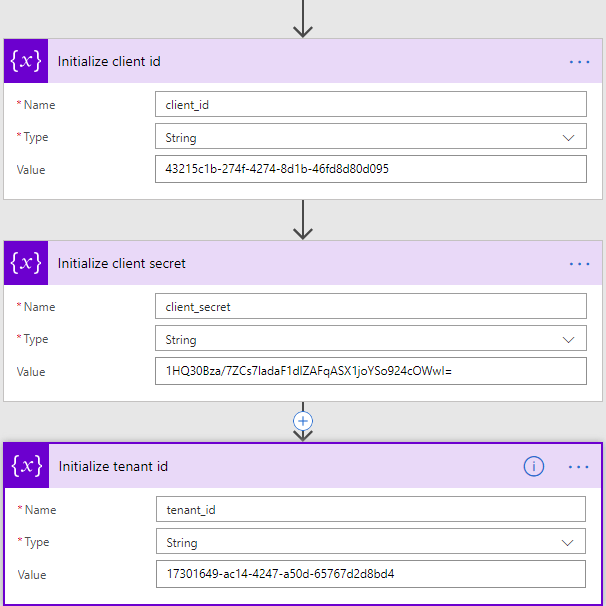
Than we have to make authentication with Microsoft Cloud. Make sure that you use tenant_id, client_id and client_secret variables made before and specify resource URL. Use HTTP – HTTP flow action.

Next step is parsing JSON result from request above. Use Parse JSON flow action with this schema:
{
    "type": "object",
    "properties": {
        "token_type": {
            "type": "string"
        },
        "expires_in": {
            "type": "string"
        },
        "ext_expires_in": {
            "type": "string"
        },
        "expires_on": {
            "type": "string"
        },
        "not_before": {
            "type": "string"
        },
        "resource": {
            "type": "string"
        },
        "access_token": {
            "type": "string"
        }
    }
}

After that you have to use another HTTP – HTTP flow action where you will use OneDrive API.
If you want to connect to non-root site collection of your SharePoint than you have to get ID of your sub site collection. Go to Graph Explorer, sign in with your MS account and make GET request to that Graph API URL:
https://graph.microsoft.com/v1.0/sites/{root-site-collection-url}:/{encoded-subsite-collection-url}
In my example, URL looks like that below:

Run query and copy ID from response.
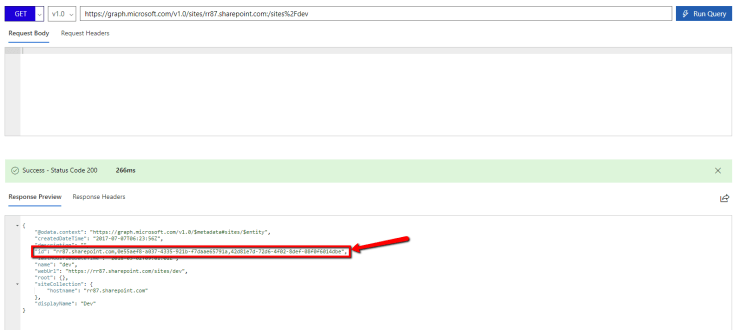
Use that ID instead of {site-id} in URL below:
https://graph.microsoft.com/v1.0/sites/{site-id}/drive/root:/{FileName}:/content?format=PDF
Inside of HTTP – HTTP Flow action use that URL and access_token from previous step:

After that just parse response JSON with next schema definition:
{
    "type": "object",
    "properties": {
        "Transfer-Encoding": {
            "type": "string"
        },
        "request-id": {
            "type": "string"
        },
        "client-request-id": {
            "type": "string"
        },
        "x-ms-ags-diagnostic": {
            "type": "string"
        },
        "Duration": {
            "type": "string"
        },
        "Cache-Control": {
            "type": "string"
        },
        "Date": {
            "type": "string"
        },
        "Location": {
            "type": "string"
        },
        "Content-Type": {
            "type": "string"
        },
        "Content-Length": {
            "type": "string"
        }
    }
}
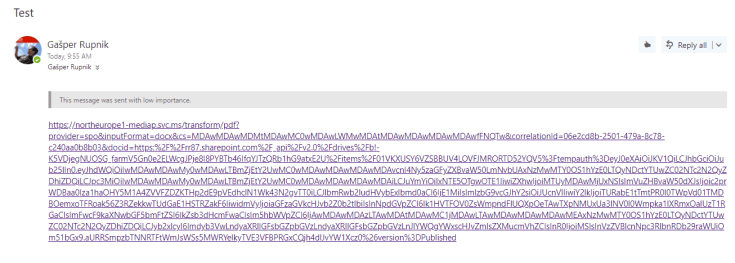
In response we need only Location information which is URL to our PDF file, converted from DOCX. We can send it then to Email or add it to some specific field inside of current library item.

After Flow is completed you get email like this below:
Cheers!
Gašper Rupnik
{End.}

 RaspeR87's Blog
Nice post which helped me a lot getting it to work quickly!
Maybe worth mentioning that in the flow you’ll get a 302 response (that will look like an error) and your flow will fail.
The workaround is to configure the action following the HTTP call to the Graph file conversion API to run regardless previous action has Failed / Succeeded.
The 302 is expected repsonse as documented here:
https://developer.microsoft.com/en-us/graph/docs/api-reference/v1.0/api/driveitem_get_content_format
Then you can use the following expression to get the Location to a variable without having to parse the whole response:
actionOutputs(‘HTTP 2’)?[‘headers’]?[‘Location’]
Hope it will complement this useful blog post nicely 😉
Cheers,
Tnx Ben, this is community stuff so you are very welcome to comments, ideas and responses like that! 🙂