
Today I want to show you how you could create Custom SharePoint Survey Template from default SharePoint Survey Template with TemplateType=”102″.
Let’s imagine that we want to create custom SharePoint Survery Template for Quick Poll. We want to allow just one question with one type of answers – Radio Buttons. And we want to have multi-language UI where Survey Admin could define question and answers in two language (English – EN and Slovenian – SI) as you can see in featured image above.
First of all – we have to create List Template, List Schema and List Instance for our Custom Survey Template. Because in Visual Studio there is no Template for Survey type of list, we have to create it manually.
Create new List inside of your SharePoint Visual Studio Solution named QuickPollList.
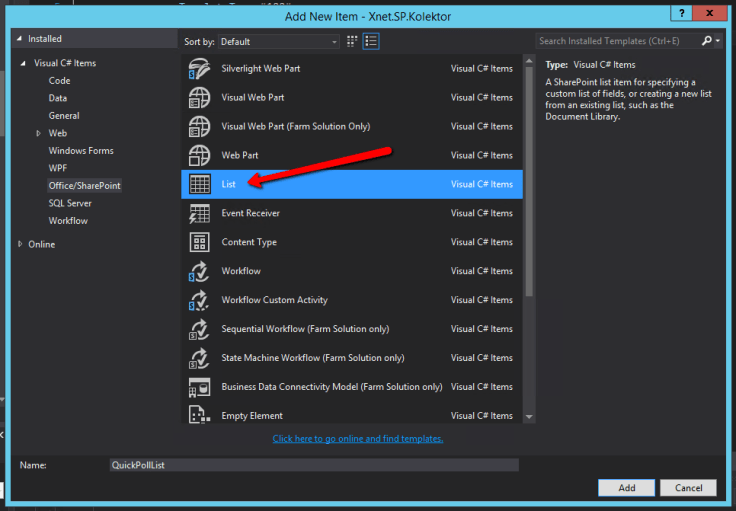
You could use Default (Custom List) template, because there is no Survey List template.

After that you can go to List Instance XML file and change TemplateType to 102:
<ListInstance Title="Quick Poll"
              OnQuickLaunch="FALSE"
              TemplateType="102"
              Url="Lists/QuickPoll"
              Description="Quick Poll">
</ListInstance>
Then you have to open List Template XML file and change Type, BaseType, SecurityBits, Sequence and Image properties:
<ListTemplate
        Name="QuickPollList"
        Type="102"
        BaseType="4"
        OnQuickLaunch="FALSE"
        SecurityBits="12"
        Sequence="510"
        DisplayName="Quick Poll"
        Description="Quick Poll"
        Image="/_layouts/15/images/itsurvey.png?rev=40"/>
List Schema for our Custom Survey List Template is on my GitHub inside of that link.
If you deploy this Solution to your SharePoint Server, you could create new Survey from this newly created Survey Template named Quick Poll.
After that you could see that new questions and answers are defined via qstNew.aspx page.

We want to modify that page in that way that you could define question and answers in two languages and you could define only Choice type of answers with Radio Buttons display type.
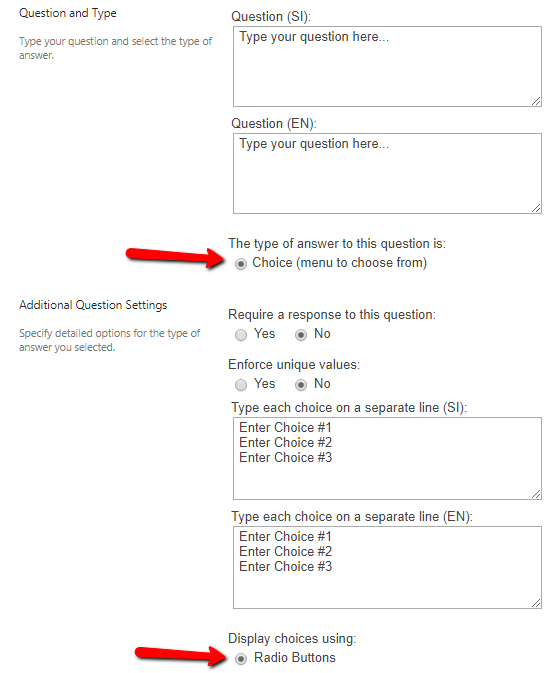
We cannot simply modify qstNew.aspx page because it is globally used for all survey instances in SharePoint from one place -> _layouts/15/qstNew.aspx with List QueryString parameter. So if we modify that page, it will be modified for all Survey List Instances from OOTB SharePoint Survey Template or from our custom Quick Poll Template.
So we have to make fresh copy of this page into new one and modify it in our way. Go back to your SharePoint Visual Studio Solution and create new Application page inside of your Layouts folder named qstNew.aspx. You can find content for that page on my GitHub via that link.
On line 701 we modified GetFieldType() function:
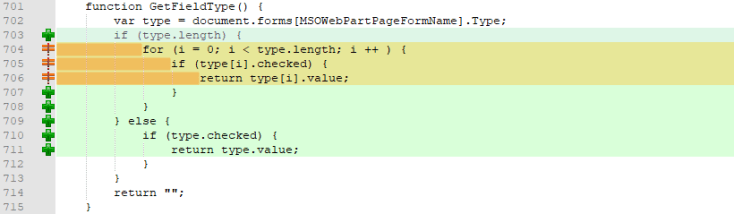
On line 918 and line 923 we modified url for form submit action to our sub-folder in layouts folder, where we have all custom Application pages for our custom Quick Poll Template:

From line 1604 to line 1651 we replaced Question Input box with two Input boxes (for Slovenian and English language):
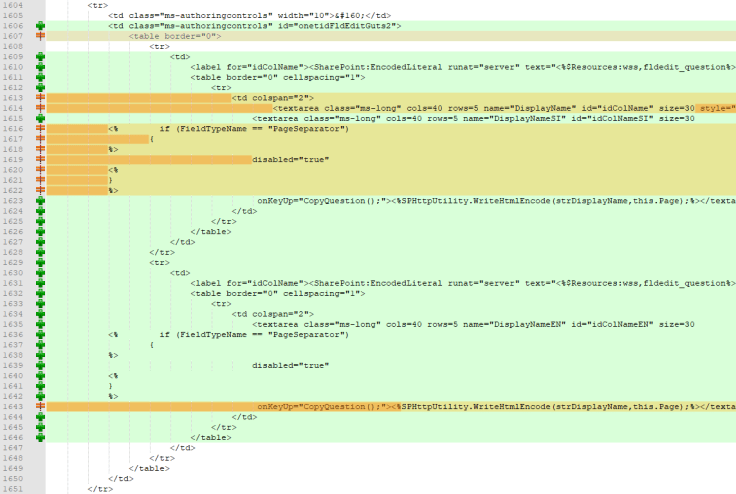
From line 1652 to line 1675 I added ScriptBlock element where we have function for copying English and Slovenian question into joined string, separated with “||”.
For example:
Slovenian question: Koliko ste stari?
English question: How old are you?
Joined question: Koliko ste stari? || How old are you?

Then on line 1698 we left only Choice type of question:

And we removed lines from 1787 to 1794:

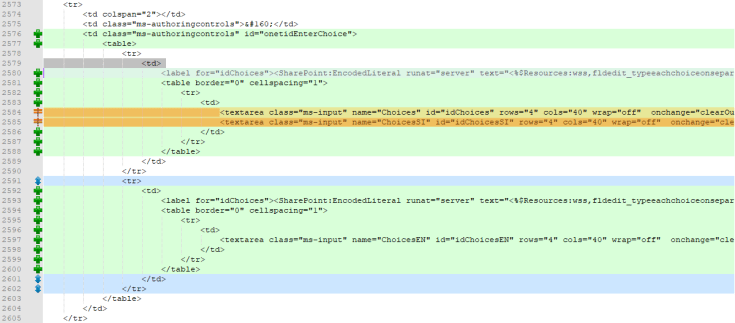
From line 2573 to line 2605 we replaced Answer Input box with two Input boxes (for Slovenian and English language):
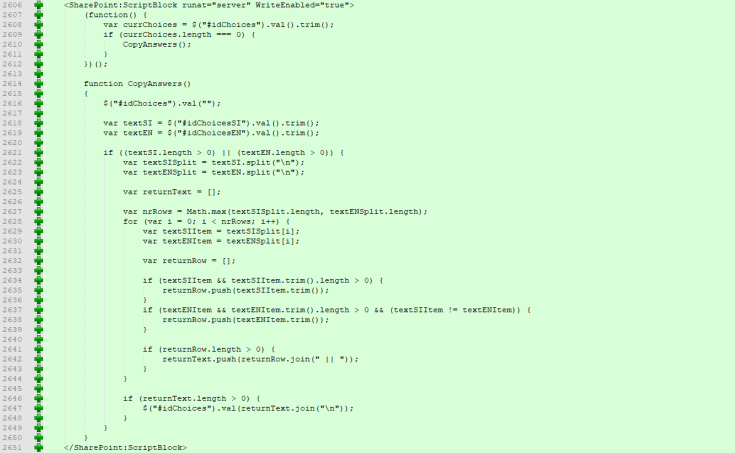
From line 2606 to line 2652 I added ScriptBlock element where we have function for copying English and Slovenian answers into joined string, separated with “||”.
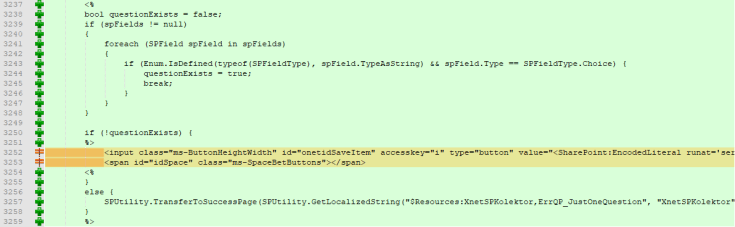
And last but not least I added this lines of codes from line 3237 to line 3259 where I want to make restriction just for one question per each Quick Poll instance:
Thats all for QstNew.aspx file. Same story for QstEdit.aspx and SurvEdit.aspx file which you have to create it inside Layouts folder of your Visual Studio Solution too.
QstEdit.aspx is pretty same as QstNew.aspx. With QstNew we could create new question, with QstEdit we could edit existing question. You can find content for QstEdit.aspx on my GitHub via that link.
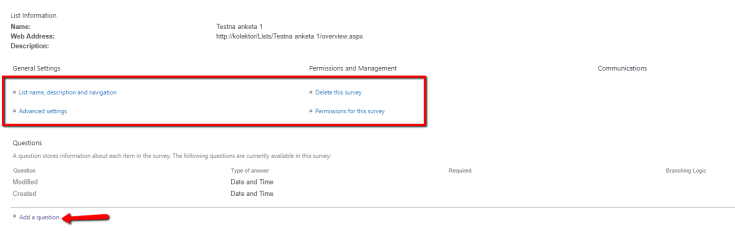
SurvEdit.aspx represent this page on image below. I modified it in a way that there we have just few general settings elements: List name, description and navigation; Advanced settings; Delete this survey and Permissions options.
You could find content for SurvEdit.aspx on my GitHub via that link.
We have to create two more Application Pages:
- ListGeneralSettings.aspx: List general settings [code: aspx, aspx.cs]
- AdvSetng.aspx: Advanced settings [code: aspx, aspx.cs]
And finally last step -> we have to connect our Add Questions and Survey Settings buttons to our newly created Application Pages with CustomAction element.

For that reason you have to create new Empty Element item template inside of your SharePoint Visual Studio Solution and put that CustomAction element inside of it:
<CustomAction
    Id="QuickPollCA"
    RegistrationType="List"
    RegistrationId="102"
    GroupId="SettingsMenuForSurvey"
    Location="Microsoft.SharePoint.StandardMenu"
    ControlAssembly="$SharePoint.Project.AssemblyFullName$"
    ControlClass="Xnet.SP.Test.WebControls.QuickPollModifier">
</CustomAction>
And here is code for our QuickPollModifier control class:
using System;
using System.Web.UI;
using System.Web.UI.WebControls;
using Microsoft.SharePoint.WebControls;
using Microsoft.SharePoint;

namespace Xnet.SP.Test.WebControls
{
    public class QuickPollModifier: Control
    {
        protected override void OnPreRender(EventArgs e)
        {
            var cList = SPContext.Current.List;
            if (cList.TemplateFeatureId == new Guid("25b2bf2a-97cd-4b18-b090-76f49d7be4e8"))
            {
                ChangeMenuItemUrl("AddQuestions");
                ChangeMenuItemUrl("ListSettings");
            }

            base.OnPreRender(e);
        }

        private void ChangeMenuItemUrl(string menuId)
        {
            Control parent = this.Parent;
            if (parent != null)
            {
                MenuItemTemplate menuItem;

                switch (menuId)
                {
                    case "AddQuestions":
                        menuItem = parent.FindControl(menuId) as MenuItemTemplate;
                        if (menuItem != null)
                            menuItem.ClientOnClickNavigateUrl = menuItem.ClientOnClickNavigateUrl.Replace("/_layouts/15/qstNew.aspx", "/_layouts/15/Xnet.SP.Test/Forms/QuickPoll/qstNew.aspx");
                        break;
                    case "ListSettings":
                        menuItem = parent.FindControl(menuId) as MenuItemTemplate;
                        if (menuItem != null)
                            menuItem.ClientOnClickNavigateUrl = menuItem.ClientOnClickNavigateUrl.Replace("/_layouts/15/survedit.aspx", "/_layouts/15/Xnet.SP.Test/Forms/QuickPoll/survedit.aspx");
                        break;
                }
            }
        }
    }
}
Cheers!
Gašper Rupnik
{End.}

 RaspeR87's Blog
Leave a comment