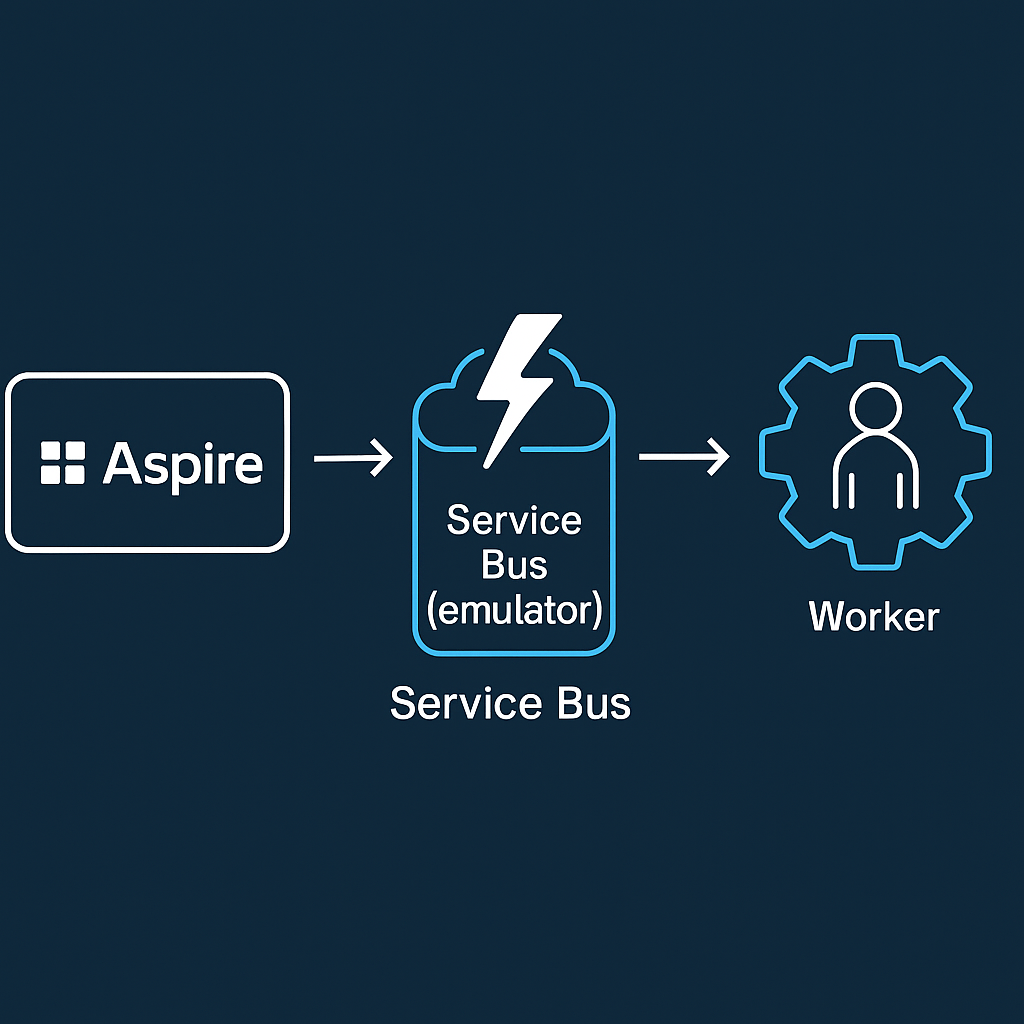
You don’t need a cloud namespace to prototype a queue-driven worker. With .NET Aspire, you can spin up an Azure Service Bus emulator, wire a Worker Service to a queue, and monitor it all from the Aspire dashboard—no external dependencies.
This post shows a minimal setup:
- Aspire AppHost that runs the Service Bus emulator
- A queue (
my-queue) + a dead-letter queue - A Worker Service that consumes messages
- Built-in enqueue commands to test locally
Folder layout
10_AzureServiceBus/
├─ AppHost/ # Aspire orchestration
├─ ServiceDefaults/ # shared logging, health, etc.
├─ WorkerService/ # background processor
└─ README.md
To create it:
dotnet new worker -n WorkerService
dotnet new aspire-apphost -n AppHost
dotnet new aspire-servicedefaults -n ServiceDefaults
AppHost: Service Bus emulator + queues
var builder = DistributedApplication.CreateBuilder(args);

// Add Azure Service Bus
var serviceBus = builder.AddAzureServiceBus("servicebus")
                        .RunAsEmulator(e => e.WithLifetime(ContainerLifetime.Persistent))
                        .WithCommands();

var serviceBusQueue = serviceBus.AddServiceBusQueue("my-queue");
serviceBus.AddServiceBusQueue("dead-letter-queue");

// Add the worker and reference the queue
builder.AddProject<Projects.WorkerService>("workerservice")
    .WithReference(serviceBusQueue)
    .WaitFor(serviceBusQueue);

builder. Build().Run();
What’s happening
RunAsEmulator(...)starts a local Service Bus emulator container (persisting data across restarts).AddServiceBusQueue("my-queue")declares the queue your worker reads from.WithCommands()exposes handy dashboard commands (like Send message) so you can test without writing a sender.WithReference(serviceBusQueue)injects the right connection settings into the worker.
Worker Service: receive & process messages
WorkerService/Program.cs
using WorkerService;

var builder = Host.CreateApplicationBuilder(args);

// Aspire defaults (logging, health, OTEL, etc.)
builder.AddServiceDefaults();

// Register Service Bus client pointing at "my-queue"
builder.AddAzureServiceBusClient("my-queue");

builder.Services.AddHostedService<Worker>();

var host = builder. Build();
host. Run();
WorkerService/Worker.cs
using Azure.Messaging.ServiceBus;

namespace WorkerService;

public class Worker(ILogger<Worker> logger, ServiceBusClient serviceBusClient) : BackgroundService
{
    protected override async Task ExecuteAsync(CancellationToken stoppingToken)
    {
        await using var processor = serviceBusClient.CreateProcessor("my-queue");

        processor.ProcessMessageAsync += MessageHandler;
        processor.ProcessErrorAsync += ErrorHandler;

        await processor.StartProcessingAsync(stoppingToken);

        await Task.Delay(-1, stoppingToken).ConfigureAwait(ConfigureAwaitOptions.SuppressThrowing);

        await processor.StopProcessingAsync(stoppingToken);
    }

    private async Task MessageHandler(ProcessMessageEventArgs args)
    {
        logger.LogInformation("Received message: {message}", args.Message.Body.ToString());
        await args.CompleteMessageAsync(args.Message);
    }

    private Task ErrorHandler(ProcessErrorEventArgs args)
    {
        logger.LogError(args.Exception, "Error processing message");
        return Task.CompletedTask;
    }
}
Why this setup?
- Local, fast feedback: The emulator behaves like real Service Bus for dev scenarios.
- No secrets: Aspire wires connection strings for you via references.
- Dash-first DX: Use commands to enqueue messages from the dashboard UI.
Run & test
From the solution root:
dotnet run --project AppHostIn the Aspire dashboard:
- Find servicebus → my-queue.
- Use the Send message command (provided by
.WithCommands()). - Type a payload like:
{"event":"hello","id":"123"}- Open workerservice logs — you’ll see:
Received message: {"event":"hello","id":"123"}Messages that can’t be processed will flow to dead-letter-queue (you can add a processor for it later).
Production path
- Swap the emulator for a real Azure Service Bus connection (Aspire supports Azure resources & secrets).
- Add retry policies, dead-letter handlers, and structured logging.
- Expose OpenTelemetry to your preferred backend (Aspire already emits signals).
That’s all folks!
Cheers!
Gašper Rupnik
{End.}

 RaspeR87's Blog
Leave a comment