Getting Started with the Microsoft Agent Framework and Azure OpenAI – My First Five .NET 9 Samples

Over the last few days, I’ve been exploring Microsoft’s new Agent Framework, a preview library that brings structured, context-aware AI capabilities directly into .NET applications.
To get familiar with its architecture and basic features, I’ve built five small “Getting Started” console samples in .NET 9, all powered by Azure OpenAI and defined via a simple .env configuration.

Each example builds upon the previous one — from a simple agent call to multi-turn conversations, function tools, approvals, and structured object outputs.

01 – SimpleAgent

The most basic example: connecting to Azure OpenAI using AzureKeyCredential, creating a simple AIAgent, and asking a question.

AIAgent agent = new AzureOpenAIClient(
    new Uri(endpoint),
    new AzureKeyCredential(key))
    .GetChatClient(deployment)
    .CreateAIAgent(instructions: "Tell me which language is most popular for development.", name: "Developer Assistant");

Console.WriteLine(await agent.RunAsync("Tell me which language is most popular for development."));

02 – ThreadAgent

Introduces multi-turn conversation threads that preserve context between user messages.

AgentThread thread = agent.GetNewThread();
Console.WriteLine(await agent.RunAsync("Tell me which language is most popular for development.", thread));
Console.WriteLine(await agent.RunAsync("Now tell me which of them to use if I want to build a web application in Microsoft ecosystem.", thread));

03 – FunctionTool

Shows how to extend the agent with function tools (custom methods) that can be invoked automatically by the AI when relevant.

[Description("Talk about dogs and provide interesting facts, tips, or stories.")]
static string TalkAboutDogs(string topic) =>
    topic.ToLower() switch
    {
        "labrador" => "Labradors are friendly and full of energy.",
        "poodle" => "Poodles are smart and hypoallergenic.",
        _ => $"Dogs are amazing companions! 🐶"
    };

var agent = new AzureOpenAIClient(new Uri(endpoint), new AzureKeyCredential(key))
    .GetChatClient(deployment)
    .CreateAIAgent("You are a funny assistant who loves dogs.",
                   tools: [AIFunctionFactory.Create(TalkAboutDogs)]);
Continue reading “Getting Started with the Microsoft Agent Framework and Azure OpenAI – My First Five .NET 9 Samples”

Building an AI Chat app with .NET Aspire, Ollama/OpenAI, Postgres, and Redis

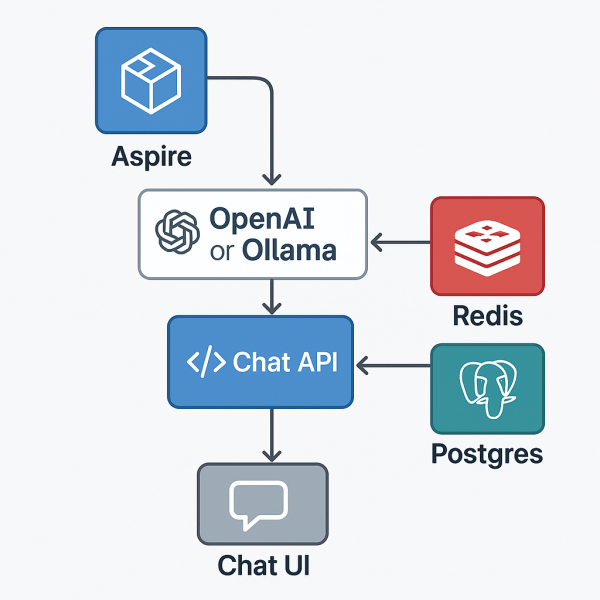
With .NET Aspire, you can orchestrate a full AI chat system — backend, model, data store, and frontend — from one place.
This sample shows how Aspire can manage a large language model (LLM), a Postgres conversation database, a Redis message broker, and a React-based chat UI, all within a single orchestration file.

Folder layout

11_AIChat/
├─ AppHost/ # Aspire orchestration
├─ ChatApi/ # .NET 9 backend API (SignalR + EF)
├─ chatui/ # React + Vite frontend
├─ ServiceDefaults/ # shared settings (logging, health, OTEL)
└─ README.md

Overview

This example demonstrates:

  • AI model orchestration with local Ollama or hosted OpenAI
  • Postgres database for conversation history
  • Redis for live chat streaming and cancellation coordination
  • Chat API using ASP.NET Core + SignalR
  • React/Vite frontend for real-time conversations
  • Full Docker Compose publishing via Aspire

The AppHost (orchestration)

AppHost/Program.cs

var builder = DistributedApplication.CreateBuilder(args);

// Publish this as a Docker Compose application
builder.AddDockerComposeEnvironment("env")
       .WithDashboard(db => db.WithHostPort(8085))
       .ConfigureComposeFile(file =>
       {
           file.Name = "aspire-ai-chat";
       });

// The AI model definition
var model = builder.AddAIModel("llm");

if (OperatingSystem.IsMacOS())
{
    model.AsOpenAI("gpt-4o-mini");
}
else
{
    model.RunAsOllama("phi4", c =>
    {
        c.WithGPUSupport();
        c.WithLifetime(ContainerLifetime.Persistent);
    })
    .PublishAsOpenAI("gpt-4o-mini");
}

// Postgres for conversation history
var pgPassword = builder.AddParameter("pg-password", secret: true);

var db = builder.AddPostgres("pg", password: pgPassword)
                .WithDataVolume(builder.ExecutionContext.IsPublishMode ? "pgvolume" : null)
                .WithPgAdmin()
                .AddDatabase("conversations");

// Redis for message streams + coordination
var cache = builder.AddRedis("cache").WithRedisInsight();

// Chat API service
var chatapi = builder.AddProject<Projects.ChatApi>("chatapi")
                     .WithReference(model).WaitFor(model)
                     .WithReference(db).WaitFor(db)
                     .WithReference(cache).WaitFor(cache);

// Frontend served via Vite
builder.AddNpmApp("chatui", "../chatui")
       .WithNpmPackageInstallation()
       .WithHttpEndpoint(env: "PORT")
       .WithReverseProxy(chatapi.GetEndpoint("http"))
       .WithExternalHttpEndpoints()
       .WithOtlpExporter()
       .WithEnvironment("BROWSER", "none");

builder.Build().Run();
Continue reading “Building an AI Chat app with .NET Aspire, Ollama/OpenAI, Postgres, and Redis”

Detect text language from files in SharePoint with AI and Flow

In a correlation with my previous blog post I want to share with you solution how you could detect text language from files in SharePoint Document Library. All can be done with help of Microsoft FlowText Analytics API and Azure Functions.

After language detection you want to save language name (English, Slovenian etc.) to one of Managed Metadata Field named Language. Because there we have Terms, you have to define it in format “Name|Guid”. I used Azure Functions to get Term Guid from Name with help of TaxonomySession from Microsoft.SharePoint.Client.Taxonomy library. Continue reading “Detect text language from files in SharePoint with AI and Flow”

Auto-tagging files in SharePoint with AI and Flow

Today I want to show you how simple is to add auto-tagging functionality to your existing SharePoint Library with no code.

So, idea is that we have SharePoint Library in which we want to upload different images. For each image we have Tags field in which we want to recognize (OCR), analyse and append key phrases from images.

For OCR recognition we will use Computer Vision API from Microsoft Cognitive Services. For text analysis we will use Text Analytics API from same service package.

The power is in Microsoft Flow. Continue reading “Auto-tagging files in SharePoint with AI and Flow”

Better Trainer

From the middle of November I was a bit more busy with projects @ work so in that time I simply have no time to write any new post, but I have learned a lot, so now I have a lot more material in my head for my blog 🙂

In that months me and my coworker and MVP for any kind of tables – Gašper Kamenšek @ExcelUnplugged – prepared something special for Thrive conference #ThriveConf @ Rimske Terme in November.

Topic of our session talks about how to become better trainer. The idea was to use face detection with emotional scores to see how visitors react and feel in session time. Because feeling is in a correlation with spoken words we use speach recognition. We can connect emotions from faces and words from speach within specific time interval -> so we need to add timestamp to both information. We use Bing Speech API for English language recognition and Google Speech API for Slovenian language recognition.

Because we get from speech recognition API complete sentence, we want to remove some unnecessary words like is, an, the, you etc from it. I use Standford Parser for that purpose – natural language parser that works out the grammatical structure of sentence.

In the end all go to Gašper Kamenšek’s part of project -> to Power BI for visualization and Azure Machine Learning (AML) for powerful analytics of correlation between women and man responses in hapiness for specific words. But that post include just my part of project which is coding (WPF application). Continue reading “Better Trainer”

Speech Recognition (Microsoft Bing Speech API vs. Google Cloud Speech API)

For some reason I want to find out, where I can find better speech recognition service – on Microsoft side with Bing Speech API or on Google side with Google Cloud Speech API.

First and most important thing for my region is that Bing Speech API does not support Slovenian language while Google Cloud Speech API does. So we can go Slovenian only by Google.

You could find both examples, Bing or Google way, on my GitHub repository. Continue reading “Speech Recognition (Microsoft Bing Speech API vs. Google Cloud Speech API)”

Face Detection & Recognition with Azure Face API

Face Detection & Recognition has never been so easy as now with Azure Face API. API is part of Azure Cognitive Services, where we have a lot of interesting intelligent APIs such as emotion and sentiment detection, vision and speech recognition, language understanding, knowledge and search.
Only what you need is Visual Studio and subscription to Face API (free trial or full) to get your API endpoint URL & subscription key (https://azure.microsoft.com/en-us/try/cognitive-services/). Continue reading “Face Detection & Recognition with Azure Face API”

Website Powered by WordPress.com.

Up ↑