Engineering Data-Driven Readiness for Cloud-Native Applications

Using .NET Aspire to Gate Traffic on Data Availability

Abstract

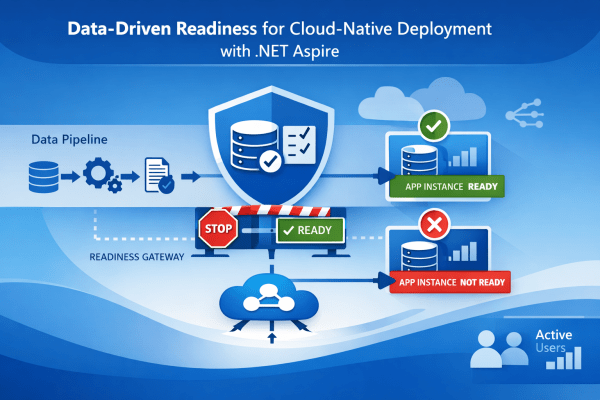
In cloud-native systems, successful deployment does not guarantee operational correctness.
Applications often start correctly, pass basic health checks, and receive production traffic — even though critical data pipelines have not completed initialization.

This article presents a data-driven readiness pattern implemented using .NET Aspire, where application instances are marked Not Ready until essential datasets are verified as available and consistent. The approach ensures that traffic is only routed to instances that can produce correct, deterministic results, not merely respond to HTTP requests.


The Problem: “Healthy” Services That Are Not Ready

Modern platforms (Azure Container Apps, Kubernetes, etc.) distinguish between:

  • Liveness – Is the process alive?
  • Readiness – Can the instance safely receive traffic?

In practice, many systems treat readiness as a shallow check:

  • HTTP endpoint responds
  • Database connection opens
  • Dependency container is reachable

This breaks down for data-dependent services, such as:

  • Retrieval-augmented systems
  • Agent-based pipelines
  • Regulatory or document-driven AI
  • Index-backed APIs

If the underlying dataset is empty, stale, or partially initialized, the service may respond — but with incorrect or misleading output.

Continue reading “Engineering Data-Driven Readiness for Cloud-Native Applications”

Continuing with the Microsoft Agent Framework – Practical Examples 06–10 for Real-World Development

A few weeks ago, I published an article titled
Getting Started with the Microsoft Agent Framework and Azure OpenAI – My First Five .NET 9 Samples,
where I walked through the foundational building blocks of the Agent Framework—basic agents, tool invocation, streaming output, and structured responses.

This article is the direct continuation of that series.

While my current work focuses on much more advanced multi-agent systems—where layered knowledge processing, document pipelines, and context-routing play a crucial role—I still believe that the best way to understand a new technology is through clear, minimal, practical samples.

So in this follow-up, I want to share the next set of examples that helped me understand the deeper capabilities of the framework.
These are Examples 06–10, and they focus on persistence, custom storage, observability, dependency injection, and MCP tool hosting.

Let’s dive in.


Example 06 — Persistent Threads: Saving & Restoring Long-Running Conversations

One of the major strengths of the Microsoft Agent Framework is the ability to maintain conversational state across messages, sessions, and even application restarts.
This is critical if you’re building:

  • personal assistants
  • developer copilots
  • chat interfaces
  • multi-step reasoning chains
  • or anything that needs user-specific memory

In Example 06, the agent:

  1. Starts a new conversation thread
  2. Answers a developer-related question
  3. Serializes the thread using thread.Serialize()
  4. Saves the serialized state to disk (or any storage)
  5. Reloads it later
  6. Resumes the conversation with full continuity

Why this matters:

  • Enables long-lived, multi-turn conversations
  • You can manage per-user memory in your own storage
  • Perfect for web apps, bots, and multi-agent orchestration
  • Unlocks real “assistant-like” behavior

This is the first step toward user-level persistent AI.

Continue reading “Continuing with the Microsoft Agent Framework – Practical Examples 06–10 for Real-World Development”

Building a .NET AI Chat App with Microsoft Agent Framework and Aspire Orchestration

Creating a fully functional AI Chat App today doesn’t have to take weeks.
With the new Microsoft Agent Framework and .NET Aspire orchestration, you can set up a complete, observable, and extensible AI solution in just a few minutes — all running locally, with built-in monitoring and Azure OpenAI integration.

If you’ve experimented with modern chat applications, you’ve probably noticed they all share a similar design.
So instead of reinventing the wheel, we’ll leverage the elegant Blazor-based front end included in Microsoft’s AI templates — and focus our energy where it matters most: the intelligence and orchestration behind it.

But where things get truly exciting is behind the scenes — where you can move from a simple chat client to a structured, observable AI system powered by Microsoft Agent Framework and .NET Aspire orchestration.

Why Use the Agent Framework?

The Microsoft Agent Framework brings much-needed architectural depth to your AI solutions. It gives you:

  • Separation of concerns – keep logic and tools outside UI components
  • Testability – verify agent reasoning and tool behavior independently
  • Advanced reasoning – support for multi-step decision flows
  • Agent orchestration – easily coordinate multiple specialized agents
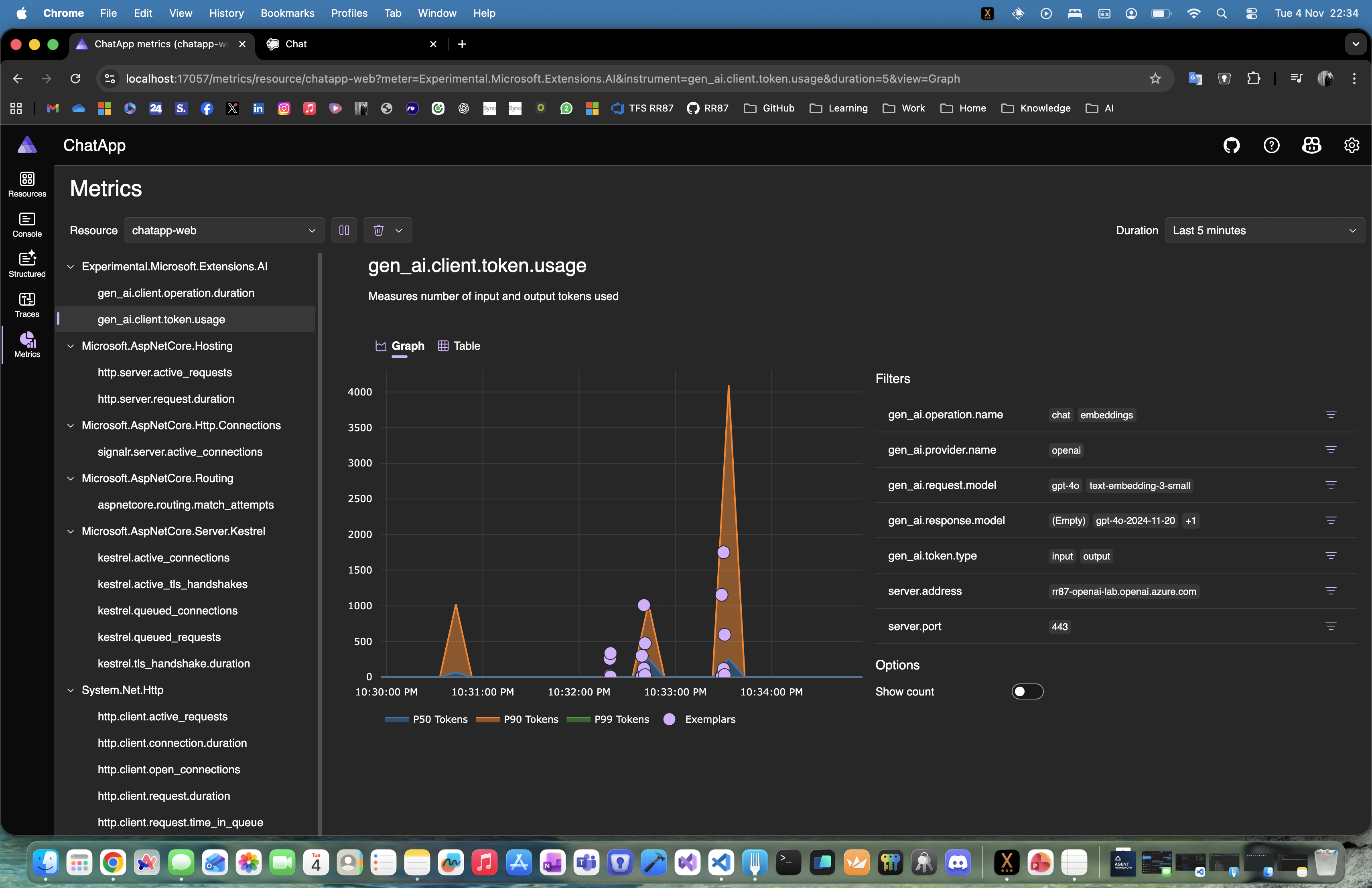
  • Deep observability – gain insight into every AI operation and decision

Essentially, it lets you transform a plain chat app into an intelligent, composable system.

Why .NET Aspire Makes It Even Better

One of the best parts about using the AI templates is that everything runs through .NET Aspire.
That gives you:

  • Service discovery between components
  • Unified logging and telemetry in the Aspire dashboard
  • Health checks for every service
  • Centralized configuration for secrets, environment variables, and connection settings

With Aspire, you get orchestration, observability, and consistency across your entire local or cloud-ready environment — no extra setup required.

Continue reading “Building a .NET AI Chat App with Microsoft Agent Framework and Aspire Orchestration”

Getting Started with the Microsoft Agent Framework and Azure OpenAI – My First Five .NET 9 Samples

Over the last few days, I’ve been exploring Microsoft’s new Agent Framework, a preview library that brings structured, context-aware AI capabilities directly into .NET applications.
To get familiar with its architecture and basic features, I’ve built five small “Getting Started” console samples in .NET 9, all powered by Azure OpenAI and defined via a simple .env configuration.

Each example builds upon the previous one — from a simple agent call to multi-turn conversations, function tools, approvals, and structured object outputs.

01 – SimpleAgent

The most basic example: connecting to Azure OpenAI using AzureKeyCredential, creating a simple AIAgent, and asking a question.

AIAgent agent = new AzureOpenAIClient(
    new Uri(endpoint),
    new AzureKeyCredential(key))
    .GetChatClient(deployment)
    .CreateAIAgent(instructions: "Tell me which language is most popular for development.", name: "Developer Assistant");

Console.WriteLine(await agent.RunAsync("Tell me which language is most popular for development."));

02 – ThreadAgent

Introduces multi-turn conversation threads that preserve context between user messages.

AgentThread thread = agent.GetNewThread();
Console.WriteLine(await agent.RunAsync("Tell me which language is most popular for development.", thread));
Console.WriteLine(await agent.RunAsync("Now tell me which of them to use if I want to build a web application in Microsoft ecosystem.", thread));

03 – FunctionTool

Shows how to extend the agent with function tools (custom methods) that can be invoked automatically by the AI when relevant.

[Description("Talk about dogs and provide interesting facts, tips, or stories.")]
static string TalkAboutDogs(string topic) =>
    topic.ToLower() switch
    {
        "labrador" => "Labradors are friendly and full of energy.",
        "poodle" => "Poodles are smart and hypoallergenic.",
        _ => $"Dogs are amazing companions! 🐶"
    };

var agent = new AzureOpenAIClient(new Uri(endpoint), new AzureKeyCredential(key))
    .GetChatClient(deployment)
    .CreateAIAgent("You are a funny assistant who loves dogs.",
                   tools: [AIFunctionFactory.Create(TalkAboutDogs)]);
Continue reading “Getting Started with the Microsoft Agent Framework and Azure OpenAI – My First Five .NET 9 Samples”

Processing Azure Service Bus messages locally with .NET Aspire

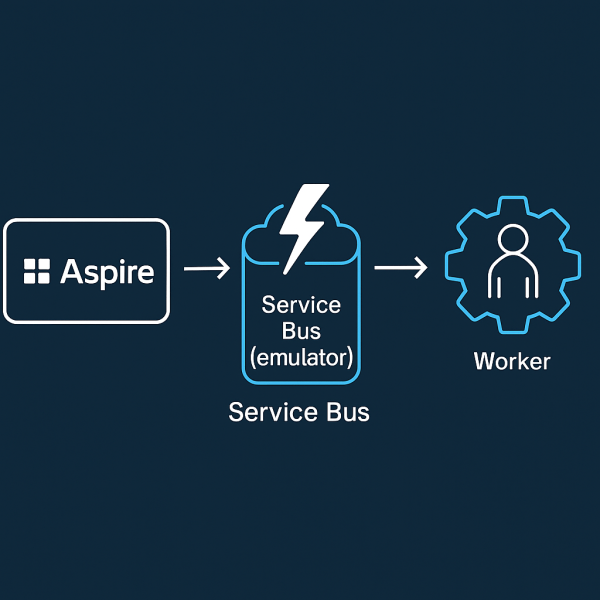
You don’t need a cloud namespace to prototype a queue-driven worker. With .NET Aspire, you can spin up an Azure Service Bus emulator, wire a Worker Service to a queue, and monitor it all from the Aspire dashboard—no external dependencies.

This post shows a minimal setup:

  • Aspire AppHost that runs the Service Bus emulator
  • A queue (my-queue) + a dead-letter queue
  • A Worker Service that consumes messages
  • Built-in enqueue commands to test locally

Folder layout

10_AzureServiceBus/
├─ AppHost/ # Aspire orchestration
├─ ServiceDefaults/ # shared logging, health, etc.
├─ WorkerService/ # background processor
└─ README.md

To create it:

dotnet new worker -n WorkerService
dotnet new aspire-apphost -n AppHost
dotnet new aspire-servicedefaults -n ServiceDefaults

AppHost: Service Bus emulator + queues

var builder = DistributedApplication.CreateBuilder(args);

// Add Azure Service Bus
var serviceBus = builder.AddAzureServiceBus("servicebus")
                        .RunAsEmulator(e => e.WithLifetime(ContainerLifetime.Persistent))
                        .WithCommands();

var serviceBusQueue = serviceBus.AddServiceBusQueue("my-queue");
serviceBus.AddServiceBusQueue("dead-letter-queue");

// Add the worker and reference the queue
builder.AddProject<Projects.WorkerService>("workerservice")
    .WithReference(serviceBusQueue)
    .WaitFor(serviceBusQueue);

builder. Build().Run();
Continue reading “Processing Azure Service Bus messages locally with .NET Aspire”

Running Azure Functions locally with .NET Aspire + Azurite

You can orchestrate an Azure Function right inside .NET Aspire, complete with a local Azurite storage emulator and a single place (the Aspire dashboard) to observe everything. This post walks through a minimal setup using the isolated worker model on .NET 9.

What we’ll build

  • A simple HTTP-triggered Azure Function (/api/Hello)
  • An Azurite container for Storage (Blob/Queue/Table)
  • An Aspire AppHost that:
    • starts Azurite,
    • wires the Function’s AzureWebJobsStorage,
    • exposes the Function on port 7071

Create the project

# Templates
dotnet new install Microsoft.Azure.Functions.Worker.ProjectTemplates
dotnet new func -n AzureFunction -F net9.0

dotnet new install Microsoft.Azure.Functions.Worker.ItemTemplates
dotnet new http -n Hello -A Anonymous -p:n AzureFunction

# Aspire orchestration
dotnet new aspire-apphost -n AppHost
dotnet new aspire-servicedefaults -n ServiceDefaults

# (macOS) Core Tools for local runs
brew tap azure/functions
brew install azure-functions-core-tools@4
echo 'export PATH="/opt/homebrew/opt/azure-functions-core-tools@4/bin:$PATH"' >> ~/.zshrc
source ~/.zshrc

func --version

Folder layout

09_AzureFunction/
├─ AppHost/
├─ ServiceDefaults/
├─ AzureFunction.csproj
├─ Program.cs
├─ Hello.cs
├─ host.json
├─ local.settings.json
└─ README.md
Continue reading “Running Azure Functions locally with .NET Aspire + Azurite”

Web/Site Templates in SharePoint Online Modern Pages? No problem.

Let’s imagine that we want to have site template with predefined design, sections, web parts on it, lists with additional fields, custom page settings etc. etc.

If you are familiar with SharePoint On-Prem versions there we have Site Definitions and Web Templates for stuff like this. But what can we do now in SharePoint Modern Sites times in a combination with SharePoint Online?

We have to learn something new – there we have Site Scripts and Site Designs for some specific common steps in creation process of our Web/Site Templates. What you could do with Site Scripts you could see on that link.
But scope of modifying with Site Scripts is a lil’bit small, so we have to take a look into alternatives.

In SharePoint world we have SharePoint PowerShell modules – so we could use PowerShell to modify our Modern Pages in SharePoint Online. But we want to make this happen automatically when new Web/Site was created -> so we want to make this happen with Web/Site Template.
That is possible only with Site Scripts and Site Designs. Fortunately we could connect our PowerShell scripts with Site Scripts and Site Designs via Microsoft Flow, which could call Azure Function App which contains PowerShell script.

But PnP team go further with PnP Provisioning Engine in their PnP PowerShell modules where you could easly specify Web/Site Template in one XML file and put it into your PowerShell script which is called from Site Scripts via Flow.

Let’s take a look into a simple example.

Continue reading “Web/Site Templates in SharePoint Online Modern Pages? No problem.”

Read user information from Skype for Business Online with Azure Function App

Let’s imagine that we want to create Address Book SPFx Web Part in which we want to have option to find and show details of our coworkers.

If you want to build it from scratch, you could choose TextField and DetailsList from Office Fabric UI. First for search box and second for showing results as you could see above.

But let’s take a look behind-scene – how we could search users from Azure AD and how could we get some of their additional information.

Continue reading “Read user information from Skype for Business Online with Azure Function App”

Import PowerShell Module / Package into your Azure Function App

If you have a concern about how you could use external PowerShell Modules or Packages inside of you Azure Function App written in PowerShell language then you could read this blog post where I want to show you my solution for that.

First of all you have to know that if you want to write Azure Function with PowerShell language support, then you have to use Function App with Runtime version 1.0 – so you couldn’t use latest runtime version 2.0 because there is no support for PowerShell language.

But why use PowerShell in Azure Function App? Let’s imagine scenario that we want to connect to Skype For Business Online API to which you could connect only from PowerShell.

But in that case we have to import specific PowerShell Module or Package into Function App in Azure.
You cannot simply call Import-Module SkypeOnlineConnector like on your local machine where you have previously installed SkypeOnlineConnector from that site. But you have to copy all files from that locally installed package into specific folder inside of your Function App in Azure.

So let’s take a look how you could do that.

Continue reading “Import PowerShell Module / Package into your Azure Function App”

Website Powered by WordPress.com.

Up ↑