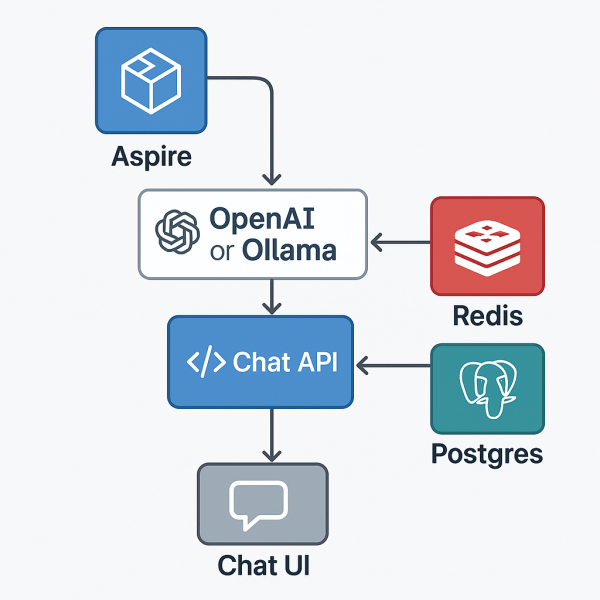
Running Azure Functions locally with .NET Aspire + Azurite

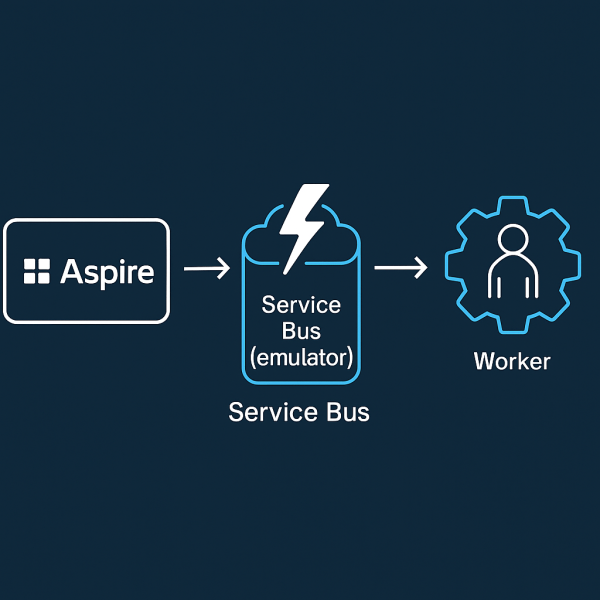
You can orchestrate an Azure Function right inside .NET Aspire, complete with a local Azurite storage emulator and a single place (the Aspire dashboard) to observe everything. This post walks through a minimal setup using the isolated worker model on .NET 9.

What we’ll build

  • A simple HTTP-triggered Azure Function (/api/Hello)
  • An Azurite container for Storage (Blob/Queue/Table)
  • An Aspire AppHost that:
    • starts Azurite,
    • wires the Function’s AzureWebJobsStorage,
    • exposes the Function on port 7071

Create the project

# Templates
dotnet new install Microsoft.Azure.Functions.Worker.ProjectTemplates
dotnet new func -n AzureFunction -F net9.0

dotnet new install Microsoft.Azure.Functions.Worker.ItemTemplates
dotnet new http -n Hello -A Anonymous -p:n AzureFunction

# Aspire orchestration
dotnet new aspire-apphost -n AppHost
dotnet new aspire-servicedefaults -n ServiceDefaults

# (macOS) Core Tools for local runs
brew tap azure/functions
brew install azure-functions-core-tools@4
echo 'export PATH="/opt/homebrew/opt/azure-functions-core-tools@4/bin:$PATH"' >> ~/.zshrc
source ~/.zshrc

func --version

Folder layout

09_AzureFunction/
├─ AppHost/
├─ ServiceDefaults/
├─ AzureFunction.csproj
├─ Program.cs
├─ Hello.cs
├─ host.json
├─ local.settings.json
└─ README.md
Continue reading “Running Azure Functions locally with .NET Aspire + Azurite”

From Aspire to Docker Compose in one command

One of my favorite Aspire tricks is publishing your local orchestration to a plain Docker Compose file. No bespoke YAML hand-crafting: define your resources in C#, run one command, and get a production-shaped compose you can run anywhere Docker is available.

This post shows a tiny demo that publishes PostgreSQL, Redis, and the Aspire Dashboard to Docker Compose.

AppHost: enable the Docker publisher

var builder = DistributedApplication.CreateBuilder(args);

// Enables Docker publisher (gives the compose project a stable name)
builder.AddDockerComposeEnvironment("aspire-docker-demo");

var postgres = builder.AddPostgres("database")
    .WithDataVolume();

var database = postgres.AddDatabase("demo-db");

var redis = builder.AddRedis("cache");

builder. Build().Run();

What this does

  • AddDockerComposeEnvironment("aspire-docker-demo")
    Opts the app into the Docker publisher and sets the Compose project name (used for networks, volume names, etc.).
  • Postgres + volume
    WithDataVolume() ensures a named Docker volume is created for data durability.
  • AddDatabase("demo-db")
    Declares a logical DB (helpful when apps bind to it; not strictly needed for Compose output).
  • Redis
    Adds a simple cache service.

Publish to Docker Compose

From the AppHost directory:

aspire publish -o docker-compose-artifacts

This generates a docker-compose.yaml (and related files) under ./docker-compose-artifacts/.

Continue reading “From Aspire to Docker Compose in one command”

Developing .NET Aspire inside a Dev Container (VS Code)

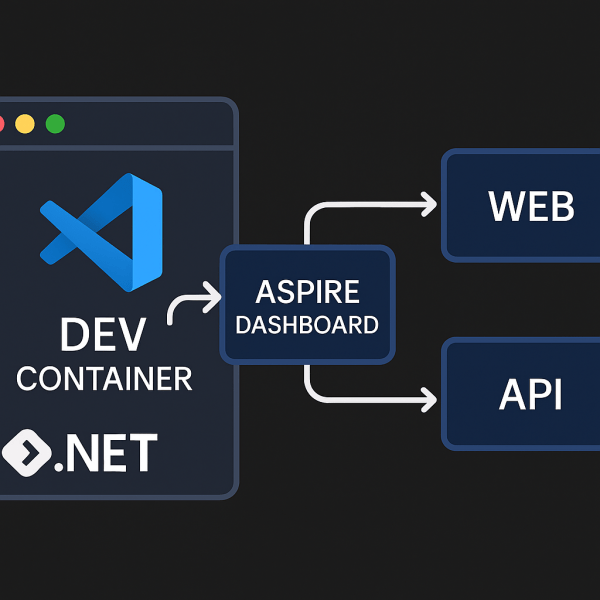
Running .NET Aspire inside a Dev Container gives you a reproducible, fully-tooled environment: Docker, .NET 9 SDK, Aspire CLI, and VS Code extensions—all preconfigured. No more “works on my machine.”

This post shows how to bootstrap an Aspire starter app and wire up a Dev Container so anyone can open the project and hit Run.

1) Create the starter app

dotnet new install Aspire.ProjectTemplates --force
dotnet new aspire-starter -n HelloAspire

You’ll get a solution with:

HelloAspire/
├─ HelloAspire.AppHost/          # Aspire orchestrator
├─ HelloAspire.ApiService/       # Minimal API
├─ HelloAspire.Web/              # Web frontend
├─ HelloAspire.ServiceDefaults/  # Shared defaults
└─ HelloAspire.sln

2) Add a Dev Container

Create .devcontainer/devcontainer.json:

// For format details, see https://aka.ms/devcontainer.json. For config options, see the
// README at: https://github.com/devcontainers/templates/tree/main/src/dotnet
{
  "name": ".NET Aspire",
  "image": "mcr.microsoft.com/devcontainers/dotnet:9.0-bookworm",
  "features": {
    "ghcr.io/devcontainers/features/docker-in-docker:2": {},
    "ghcr.io/devcontainers/features/powershell:1": {}
  },

  "hostRequirements": {
    "cpus": 8,
    "memory": "32gb",
    "storage": "64gb"
  },

  "onCreateCommand": "curl -sSL https://aspire.dev/install.sh | bash",
  "postStartCommand": "dotnet dev-certs https --trust",

  "customizations": {
    "vscode": {
      "extensions": [
        "ms-dotnettools.csdevkit",
        "GitHub.copilot-chat",
        "GitHub.copilot"
      ]
    }
  }
}
Continue reading “Developing .NET Aspire inside a Dev Container (VS Code)”

Building a Dynamic Command Sample with .NET Aspire

In previous posts, we’ve seen how .NET Aspire can orchestrate multi-service setups — from running Python APIs to launching Vite frontends.
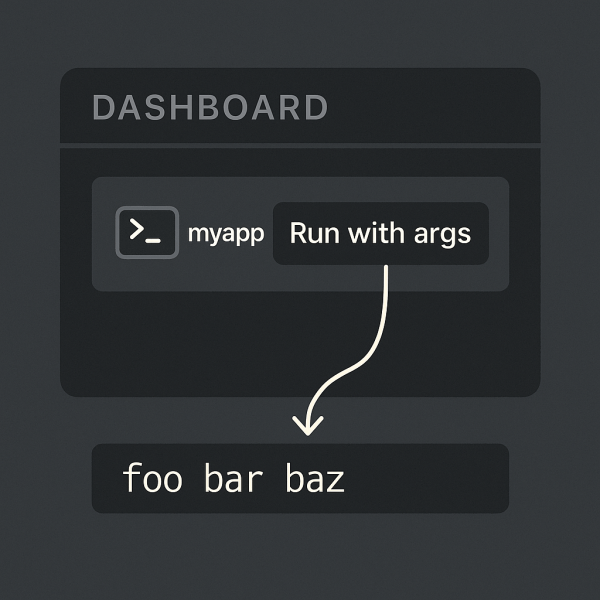
But Aspire can also do something more subtle and powerful: dynamically control how resources start and run — even with custom arguments at runtime.

This post demonstrates a minimal example showing how to build an Aspire interactive command that lets you input arguments on the fly before launching a console app.

Folder layout

Here’s the structure of this sample:

06_DynamicCMDSample/
├─ App/
│  └─ Program.cs
├─ AppHost/
│  └─ Program.cs
├─ ServiceDefaults/
│  └─ (default configuration)
└─ README.md

This layout follows the standard Aspire application template:

  • App → a simple console project
  • AppHost → the orchestration layer (the Aspire “brain”)
  • ServiceDefaults → common defaults like logging and configuration
Continue reading “Building a Dynamic Command Sample with .NET Aspire”

Running a Python MCP server inside .NET Aspire

.NET Aspire isn’t limited to .NET microservices — you can orchestrate Python components just as easily.
In this post, we’ll look at how to run a Python MCP (Model Context Protocol) server inside an Aspire application, integrate it with the MCP Inspector, and expose it via a Dev Tunnel for testing.

Folder Layout

05_PythonMCP/
├─ AppHost.cs
├─ PythonMCP.csproj
├─ appsettings.json
├─ appsettings.Development.json
├─ NuGet.config
├─ README.md
└─ pymcp/
   ├─ main.py
   ├─ requirements.txt
   └─ (optional) .venv/

AppHost.cs

Here’s the full orchestration file:

var builder = DistributedApplication.CreateBuilder(args);

var inspector = builder.AddMcpInspector("mcp-inspector");

var tunnel = builder.AddDevTunnel("dev-tunnel");

var pyMcpServer = builder.AddPythonApp(
    name: "pymcp",
    appDirectory: "./pymcp",
    scriptPath: "main.py"
).WithHttpEndpoint(env: "PORT");

tunnel.WithReference(pyMcpServer, allowAnonymous: true);

inspector.WithMcpServer(pyMcpServer);

builder. Build().Run();
Continue reading “Running a Python MCP server inside .NET Aspire”

Running a Python FastAPI (Uvicorn) service from .NET Aspire

NET Aspire isn’t limited to .NET services. You can orchestrate a Python service (FastAPI on Uvicorn) right alongside your .NET components—same lifecycle, unified logs, single dotnet run.

Below is a minimal setup that boots a FastAPI app with health endpoint, exposes it via Aspire, and keeps everything tidy in one solution.

Folder layout

04_PythonUvicorn/
├─ AppHost.cs
├─ PythonUvicorn.csproj
├─ appsettings.json
├─ appsettings.Development.json
├─ README.md
└─ uvicornapp-api/          # Python app lives here
   ├─ main.py
   ├─ requirements.txt
   └─ (optional) .venv/

AppHost.cs (Aspire)

var builder = DistributedApplication.CreateBuilder(args);

var uvicorn = builder.AddUvicornApp(
        name: "uvicornapp",
        projectDirectory: "./uvicornapp-api",
        appName: "main:app"
    )
    .WithHttpEndpoint(targetPort: 8000)   // app listens on 8000
    .WithExternalHttpEndpoints();         // optional, expose to host

builder. Build().Run();
Continue reading “Running a Python FastAPI (Uvicorn) service from .NET Aspire”

Running a Vite Frontend from .NET Aspire

One of the nicest features of .NET Aspire is that it can orchestrate not just APIs and databases, but also frontends.
That means your backend, frontend, and supporting infrastructure can all be started with a single dotnet run — no separate terminal tabs, npm installs, or manual steps.

Let’s look at a minimal example where Aspire runs a Vite dev server directly from your project.

Folder Layout

Here’s the structure we’ll use:

03_ViteApps/
├─ AppHost.cs
├─ ViteApps.csproj
├─ appsettings.json
├─ appsettings.Development.json
└─ my-vite-app-npm/        # Vite project (package.json, src, index.html)

The .NET Aspire project (AppHost.cs) lives at the root, and your Vite app sits inside my-vite-app-npm/.

Continue reading “Running a Vite Frontend from .NET Aspire”

Building a simple reverse proxy with .NET Aspire and YARP

With .NET Aspire, you can spin up distributed applications and infrastructure components with almost no boilerplate.
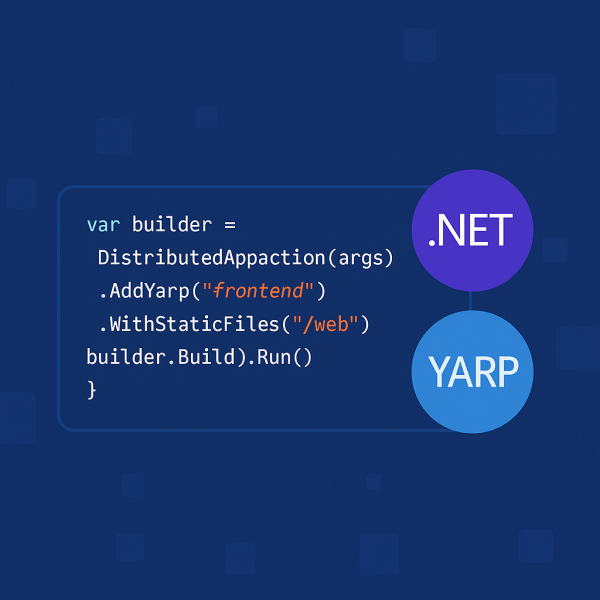
Here’s a minimal example that uses YARP (Yet Another Reverse Proxy) to serve a static frontend:

var builder = DistributedApplication.CreateBuilder(args);

builder.AddYarp("frontend")
    .WithStaticFiles("./web");

builder. Build().Run();

That’s all it takes to host a frontend inside an Aspire-managed app!

Continue reading “Building a simple reverse proxy with .NET Aspire and YARP”

Web/Site Templates in SharePoint Online Modern Pages? No problem.

Let’s imagine that we want to have site template with predefined design, sections, web parts on it, lists with additional fields, custom page settings etc. etc.

If you are familiar with SharePoint On-Prem versions there we have Site Definitions and Web Templates for stuff like this. But what can we do now in SharePoint Modern Sites times in a combination with SharePoint Online?

We have to learn something new – there we have Site Scripts and Site Designs for some specific common steps in creation process of our Web/Site Templates. What you could do with Site Scripts you could see on that link.
But scope of modifying with Site Scripts is a lil’bit small, so we have to take a look into alternatives.

In SharePoint world we have SharePoint PowerShell modules – so we could use PowerShell to modify our Modern Pages in SharePoint Online. But we want to make this happen automatically when new Web/Site was created -> so we want to make this happen with Web/Site Template.
That is possible only with Site Scripts and Site Designs. Fortunately we could connect our PowerShell scripts with Site Scripts and Site Designs via Microsoft Flow, which could call Azure Function App which contains PowerShell script.

But PnP team go further with PnP Provisioning Engine in their PnP PowerShell modules where you could easly specify Web/Site Template in one XML file and put it into your PowerShell script which is called from Site Scripts via Flow.

Let’s take a look into a simple example.

Continue reading “Web/Site Templates in SharePoint Online Modern Pages? No problem.”

Anonymous CreateTerm leads to UnauthorizedAccessException and ArgumentNullException

Today is time for new post, new hack inside of SharePoint environment 🙂

Let’s imagine that we want to create new Term inside of specific Term Set within specific Term Store. But we want to create it as anonymous user, because we want to make this functionality available inside of some public page without login needs.

We could make this possible with code which runs inside of RunWithElevatedPrivileges scope. But creating term process differs from other creating processes inside of SharePoint (list item creation, file upload etc.).

Let’s take a look to this topic.

Continue reading “Anonymous CreateTerm leads to UnauthorizedAccessException and ArgumentNullException”

Website Powered by WordPress.com.

Up ↑