Today I want to show you how simple is to add auto-tagging functionality to your existing SharePoint Library with no code.
So, idea is that we have SharePoint Library in which we want to upload different images. For each image we have Tags field in which we want to recognize (OCR), analyse and append key phrases from images.
For OCR recognition we will use Computer Vision API from Microsoft Cognitive Services. For text analysis we will use Text Analytics API from same service package.
The power is in Microsoft Flow.
So, lets start. Firstly, we have to create SharePoint Document Library.

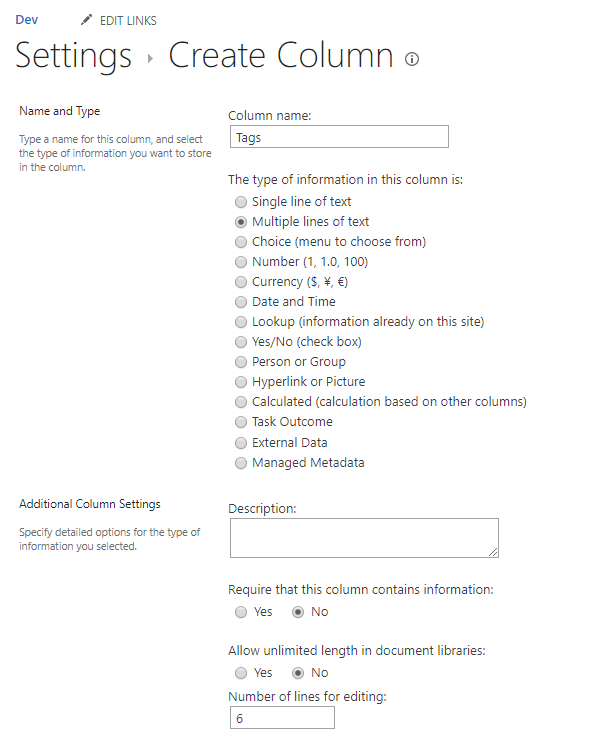
Then we add new Column named Tags. It can be optional with Multiple lines of text type.
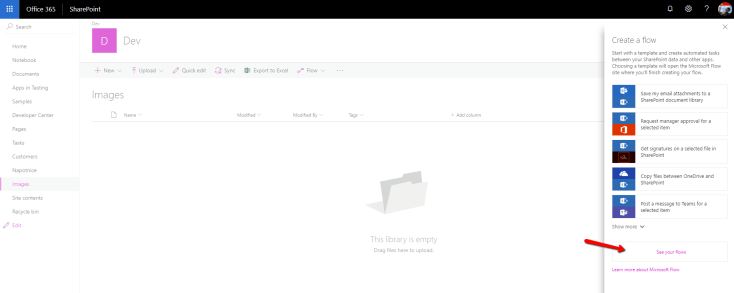
After that we create new Flow on this Library. Because there is no corresponding template we have to click on See your flows link.
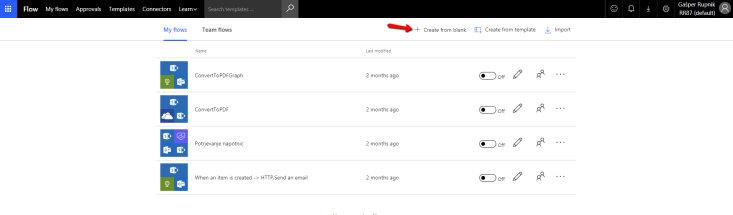
Create new Flow from blank …
… and use When an item is created start trigger.

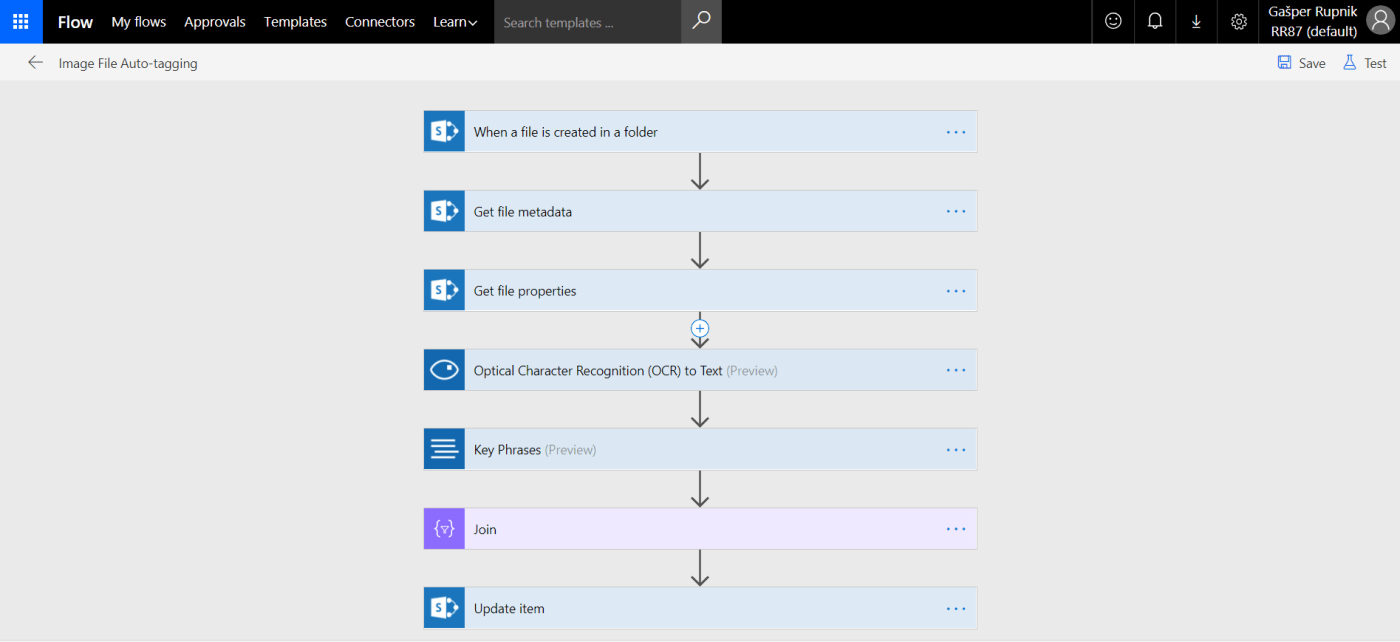
Remove default trigger step and choose SharePoint – When a file is created in a folder instead.

Set Site Address to Site Url, where you have already created Images Document Library and set Folder Id to it.
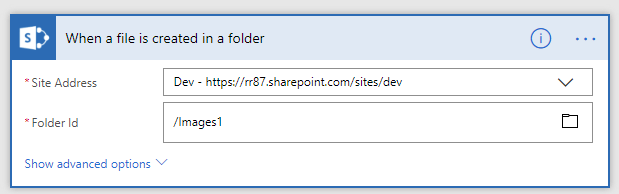
As next step please use SharePoint – Get file metadata action …

… and set Site Address and File Identifier as follow:

After that you could get file properties with ItemId:

As I mentioned we will use Computer Vision API and Text Analytics API. You could try trial version of both for 7 days via links above.
Please copy Endpoint and Keys for both APIs because you have to use it in your Flow for API authentication.


After that you could use next step from Computer Vision API for OCR to text conversion from File Content.

Then you put detected text into Text Analytics API to get Key Phrases from it.
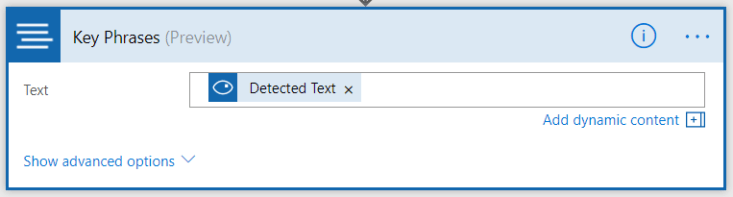
From that stap you will get array of Key Phrases, so we have to do Join function on it with “, “ string.

And the last step – we save Output from Join function into Tags field of our item – we use Update Item SharePoint step.

Full flow here:

In my example I have two images uploaded to SharePoint Library. One have English text and another Slovenian.

In example above we have this two images inside Library:
Cheers!
Gašper Rupnik
{End.}

 RaspeR87's Blog
Great article!
Did you need to setup anything in Azure to get this to work? I’ve just built this but it continues to error on the Join -“‘Required property ‘from’ expects a value but got null.”
@hpurdum sory about my late response -> no, you don’t need to setup anything else inside of your Azure. I think you have I problem with your OCR or Key Phrases steps -> you have to specify APIs endpoints & keys.
Excellent Documentation !!
I did try the above method and was able to achieve the outcome. Can you please find a solution to auto tag word and text documents on sharepoint ?? It seems it’s a big fuzz.
Thanks 🙂
H Rasper thanks for the inspiration 🙂 http://www.federicoporceddu.com/2019/03/10/react-ai-images-suggestion-a-spfx-sample-webpart-using-azure-cognitive-services/