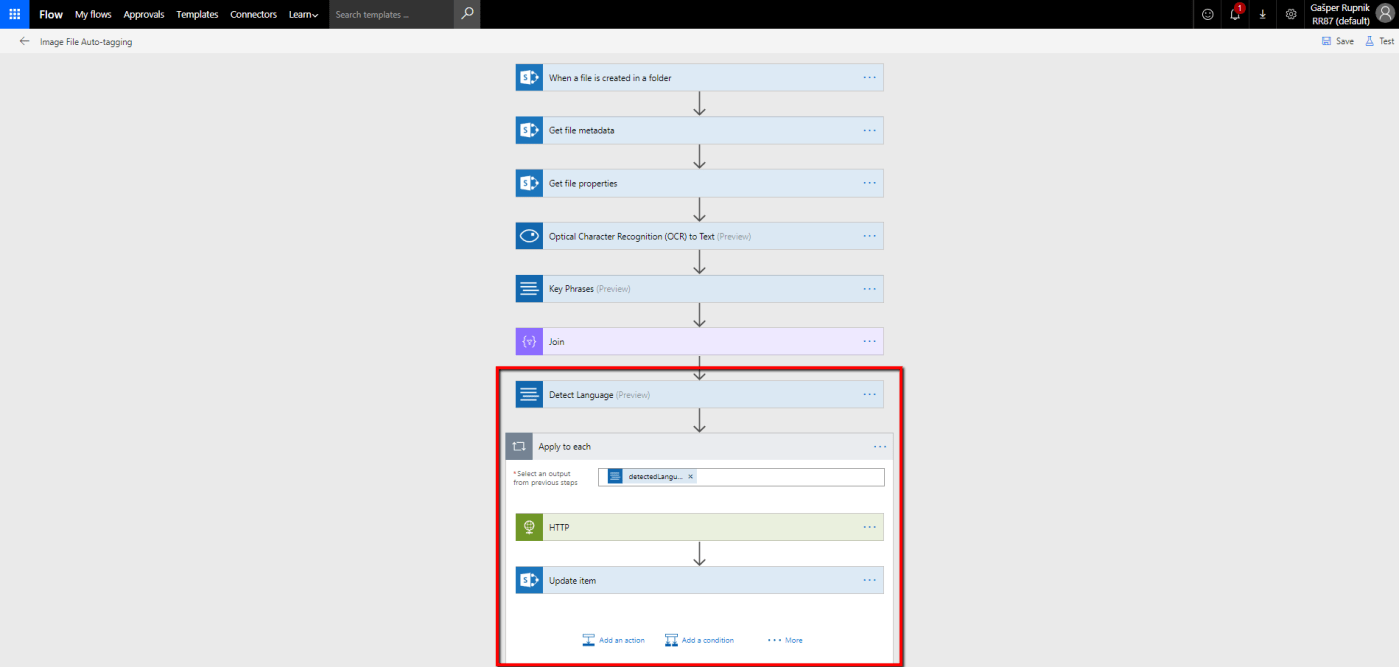
In a correlation with my previous blog post I want to share with you solution how you could detect text language from files in SharePoint Document Library. All can be done with help of Microsoft Flow, Text Analytics API and Azure Functions.
After language detection you want to save language name (English, Slovenian etc.) to one of Managed Metadata Field named Language. Because there we have Terms, you have to define it in format “Name|Guid”. I used Azure Functions to get Term Guid from Name with help of TaxonomySession from Microsoft.SharePoint.Client.Taxonomy library.
I took Flow from my previous blog post solution and add this part of actions to it:

So, open Flow from previous blog post and add new step just before last action Update item.

Then search for Text Analytics – Detect Language action.
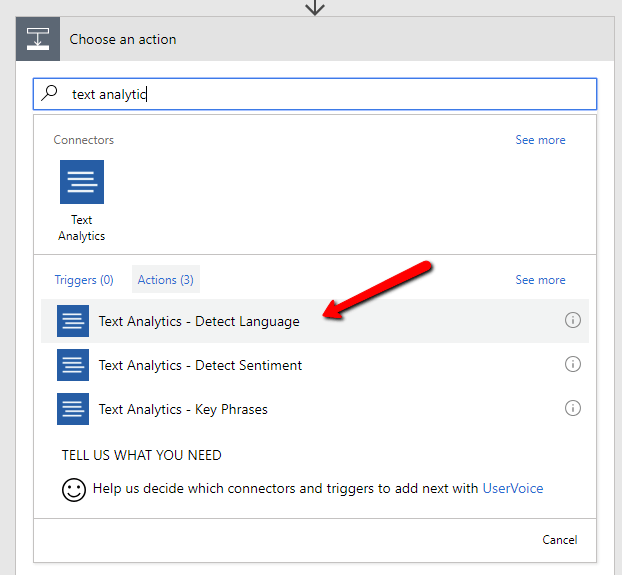
You have to define text for Language detection. We have Detected Text from one of previous step (OCR).

From this step we get back list of all detected languages with Language Code, Name and Score. We need only Name in further steps.
But firstly, go into Term store management from SharePoint Site Settings. Create new Group named Custom with Term Set named Language. Add two Terms into it: English, Slovenian.
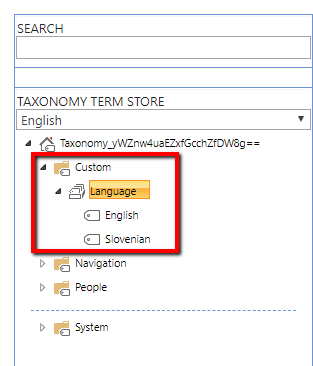
When we want to save specific Term into Managed Metadata Field we have to specify it with Name and Guid. If you go into English Term you could find GUID in the bottom of the page.
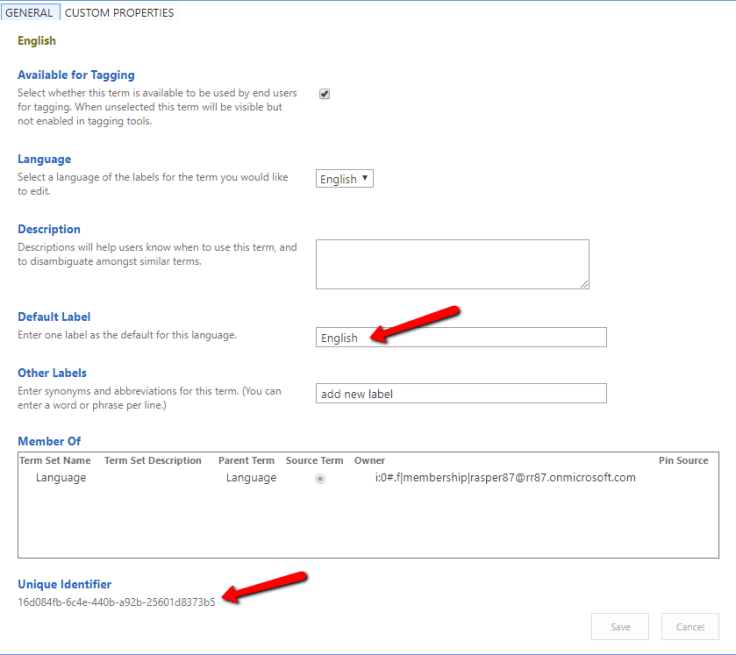
So in my example I will write it like “English|16d084fb-6c4e-440b-a92b-25601d8373b5”.
Then open Images Document Library created in previous blog post and create new Managed Metadata field named Language. Link it to Language Term Set created before.
From Detect Language step in Flow we get only language name – English. But we need Guid too, so we have to ask Language Term Set for Guid of specific language Term. For that reason I user Azure Functions.
Go to your portal.azure.com page and create new Function App named GetTermFromTermSet.
Create new function inside Function App …

… and select HTTP trigger with C# language.

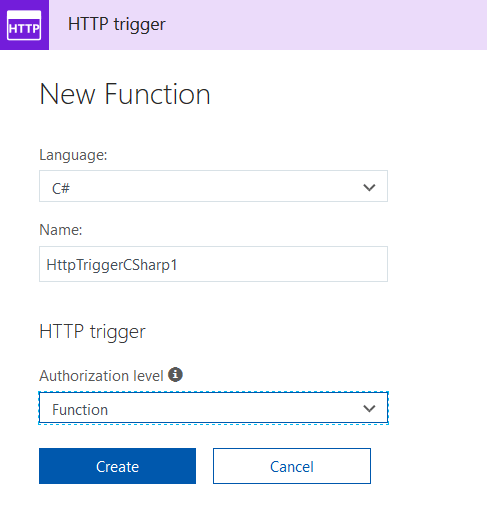
Then select platform features / Advanced tools (Kudu).

Open Debug console / PowerShell and go into the site/wwwroot/HttpTriggerCSharp1 folder. Create bin folder inside it and drag&drop next assemblies from your local SharePoint 2016 ISAPI hive folder:
- Microsoft.SharePoint.Client.dll
- Microsoft.SharePoint.Client.Runtime.dll
- Microsoft.SharePoint.Client.Taxonomy.dll
Then open run.csx file and copy code below into it. This code is main code for our Azure Function.
#r "Microsoft.SharePoint.Client.Runtime.dll"
#r "Microsoft.SharePoint.Client.dll"
#r "Microsoft.SharePoint.Client.Taxonomy.dll"

using System.Net;
using Microsoft.SharePoint.Client;
using Microsoft.SharePoint.Client.Taxonomy;

public static async Task<HttpResponseMessage> Run(HttpRequestMessage req, TraceWriter log)
{
    string termName = req.GetQueryNameValuePairs()
        .FirstOrDefault(q => string.Compare(q.Key, "termName", true) == 0)
        .Value;

    string email = "xyz@xyz.onmicrosoft.com";
    string password = "Pa$$w0rd";
    string webUrl = "https://xyz.sharepoint.com/sites/dev";

    string groupName = "Custom";
    string termSetName = "Language";

    System.Security.SecureString securePassword = new System.Security.SecureString();
    foreach (char pass in password) {
        securePassword.AppendChar(pass);
    }

    SharePointOnlineCredentials spOnlineCredentials = new SharePointOnlineCredentials(email, securePassword);
    try
    {
        using (var ctx = new ClientContext(webUrl))
        {
            ctx.Credentials = spOnlineCredentials;
            Web web = ctx.Site.RootWeb;

            TaxonomySession taxonomySession = TaxonomySession.GetTaxonomySession(web.Context);

            web.Context.Load(taxonomySession);
            web.Context.ExecuteQuery();

            TermStore termStore = taxonomySession.GetDefaultSiteCollectionTermStore();

            web.Context.Load(termStore.Groups);
            web.Context.ExecuteQuery();

            TermGroup group = CheckIfTermGroupExists(termStore, groupName)
                ? termStore.Groups.GetByName(groupName)
                : termStore.CreateGroup(groupName, Guid.NewGuid());

            web.Context.Load(group.TermSets);
            web.Context.ExecuteQuery();

            TermSet termSet = CheckIfTermSetExists(group, termSetName) ? group.TermSets.GetByName(termSetName) : group.CreateTermSet(termSetName, Guid.NewGuid(), 1033);

            web.Context.Load(termSet.Terms);
            web.Context.ExecuteQuery();

            Term term = CheckIfTermExists(termSet, termName) ? termSet.Terms.GetByName(termName) : null;

            web.Context.Load(term);
            web.Context.ExecuteQuery();

            return req.CreateResponse(HttpStatusCode.OK, term.Name + "|" + term.Id);
        }
    }
    catch(Exception ex){
        log.Info($"Azure Function Exception: {ex.Message}");
        return req.CreateResponse(HttpStatusCode.BadRequest, ex.Message);
    }
}

public static bool CheckIfTermGroupExists(TermStore termStore, string groupName)
{
    foreach (TermGroup group in termStore.Groups)
    {
        if (@group.Name == groupName)
        {
            return true;
        }
    }
    return false;
}

public static bool CheckIfTermSetExists(TermGroup group, string termSetName)
{
    foreach (TermSet termSet in @group.TermSets)
    {
        if (termSet.Name == termSetName)
        {
            return true;
        }
    }
    return false;
}

public static bool CheckIfTermExists(TermSet termSet, string termName)
{
    foreach (Term term in @termSet.Terms)
    {
        if (term.Name == termName)
        {
            return true;
        }
    }
    return false;
}
As you can see, we get termName querystring parameter and we ask specific Term Set in specific Group for Term with this specific Term name.
Save all changes and copy function URL from Get function URL link.

Your URL looks like this below:
https://gettermfromtermset.azurewebsites.net/api/HttpTriggerCSharp1?code={some-custom-code}==
Go back into your Flow and add new HTTP step for calling this Azure Function via URL above.

Copy URL into URI field and append &termName= string into it with Name variable from Detect Language step.
Last but not least you have to update Update item action with Language Value. Save Body from HTTP step into it.

Thats all folks. Open Images Document Library in your SharePoint. Add images into it in you can see text language inside of Language Managed Metadata Field.
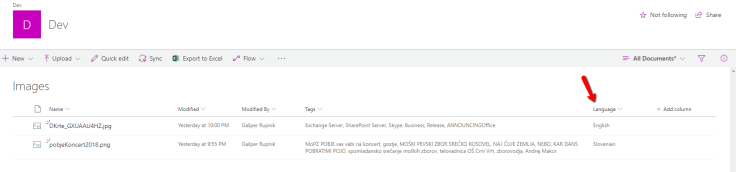
In example above we have this two images inside Library:
Cheers!
Gašper Rupnik
{End.}

 RaspeR87's Blog
Do you mind sharing the pictures please 😀 ? People asking to see the image and result 🙂 Cheers
@jeffangame of course, I add links to pictures at the end of this blog post 🙂